Manage Invites in Liqnic Admin
In this guide, you’ll learn how to manage invites in your store.
Add Admin Users through Invites
To add a new user to your team, you must invite them.
The user receives a notification of the invite to sign up, but you can also manually send them the invite link.
Note: The form of notification sent (e.g., email) depends on your store’s configuration. Contact your technical team if unsure.
Invite a User
To send an invite to a user:
- Go to Settings → Users.
- Click the Invite button.
- Enter the user’s email.
- Click Send invite when done.
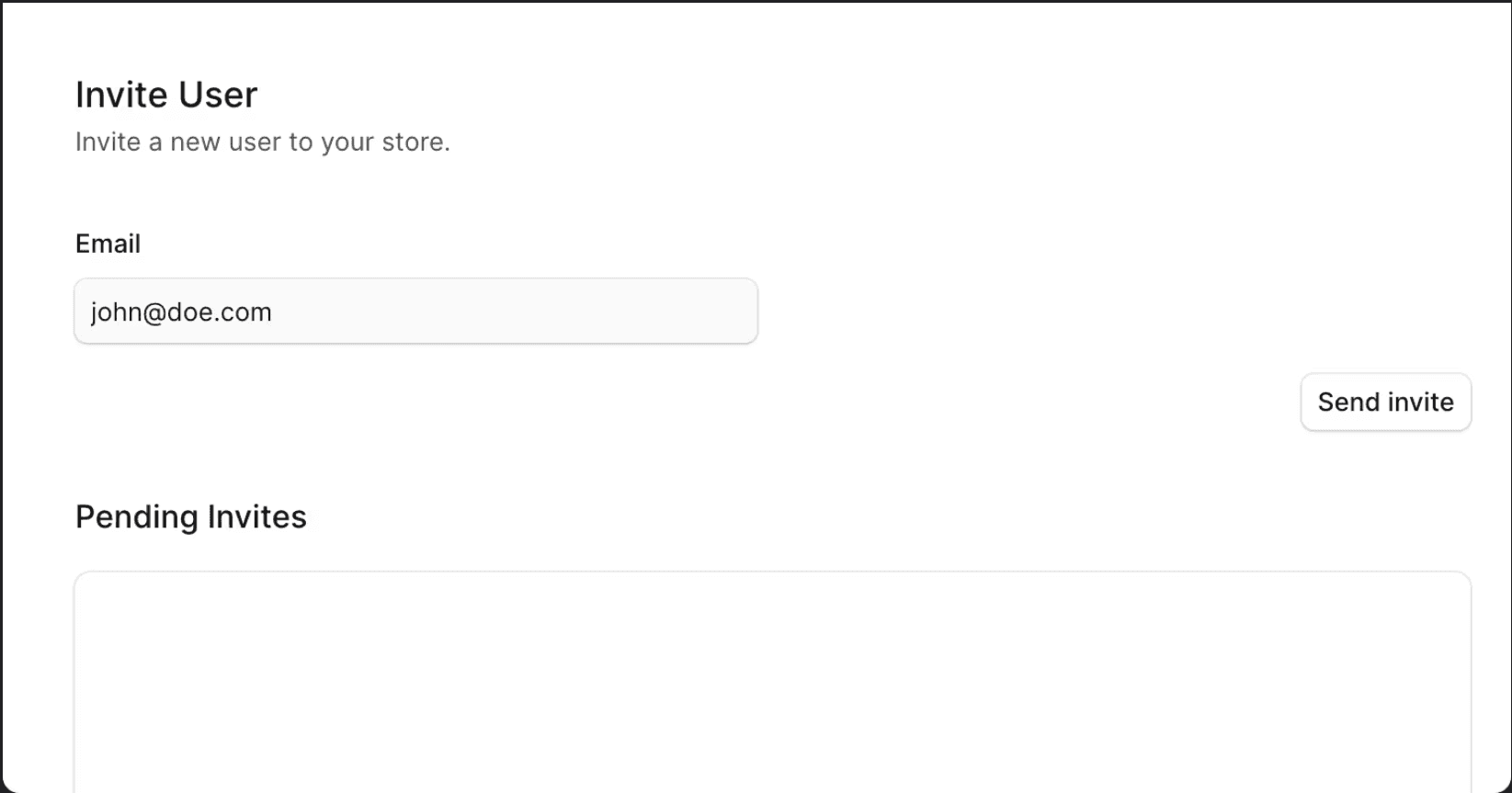
View Pending Invites
To view pending invites:
- Go to Settings → Users.
- Click the Invite button.
- Below the form, you’ll find a Pending Invites table with all invites that haven’t been accepted yet.
Resend an Invite
You can resend an invite if the user hasn’t received it, lost the link, or the invite has expired.
To resend an invite:
- Go to Settings → Users.
- Click the Invite button.
- In the Pending Invites table, find the user and click the ⋮ icon.
- Choose Resend invite from the dropdown.
A notification will be sent to the user as configured.
Get Invite Link
You can also copy the invite link and send it manually to the user.
To copy the invite link:
- Go to Settings → Users.
- Click the Invite button.
- In the Pending Invites table, find the user and click the ⋮ icon.
- Choose Copy invite link from the dropdown.
You can then share this link with the user for sign-up.
Delete Invite
Warning: Deleting an invite revokes it, preventing the user from signing up with that link.
To delete an invite:
- Go to Settings → Users.
- Click the Invite button.
- In the Pending Invites table, find the user and click the ⋮ icon.
- Choose Delete from the dropdown.
- Confirm deletion in the pop-up by clicking Delete.