Create a Promotion in Liqnic Admin
In this guide, you’ll learn how to create a promotion of different types and configurations.
To create a promotion:
- Go to Promotions.
- Click on the Create button.
- This will open the form to create a promotion, which is made up of three steps: Type, Details, and Campaign.
Step 1: Type
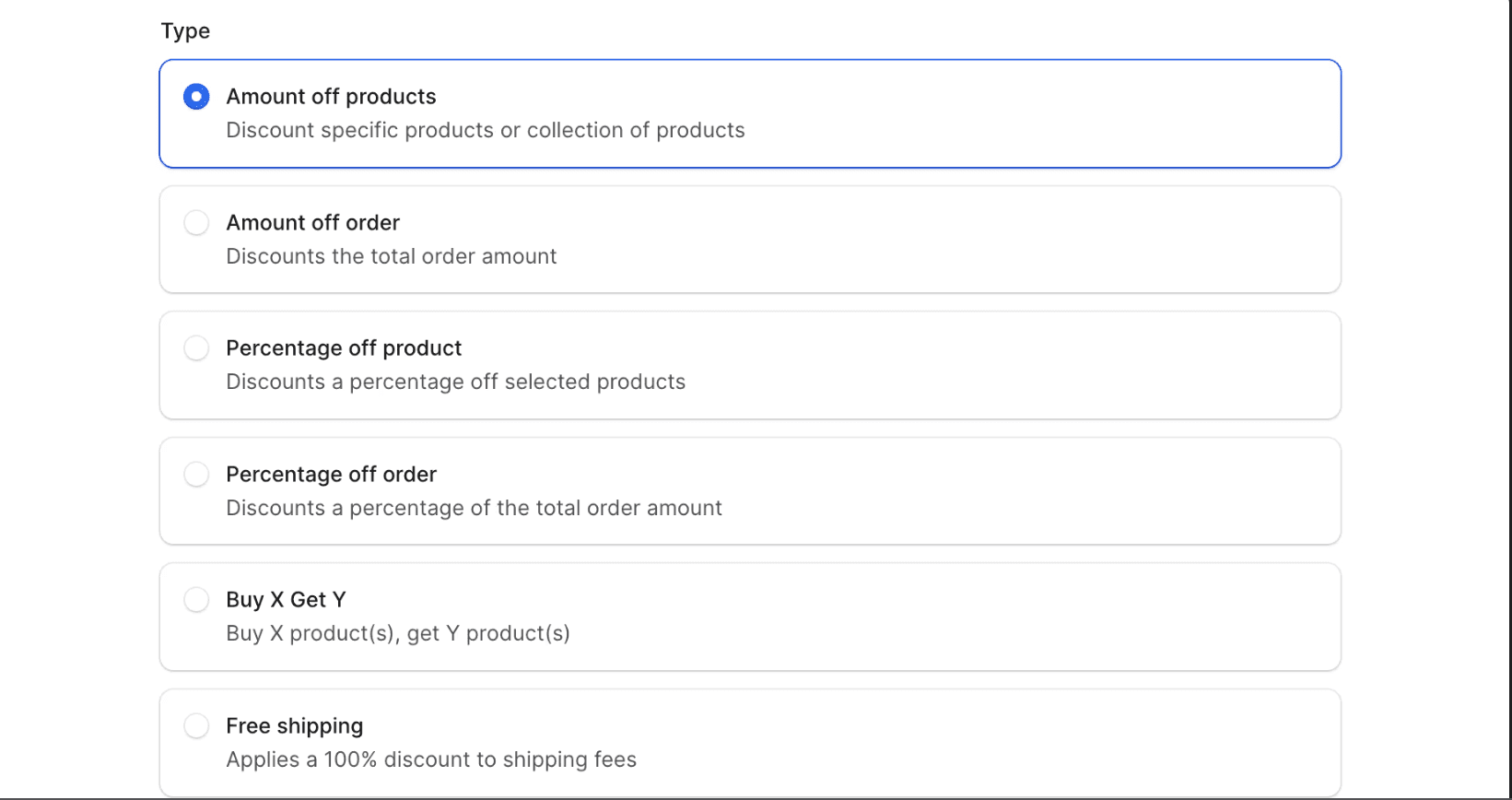
In the first step of creating a promotion, you need to specify the type of the promotion, which can be one of the following:
- Amount off products: Discount a fixed amount of products matching custom and dynamic conditions.
- Amount off order: Discount a fixed amount from the total order amount.
- Percentage off product: Discount a percentage off the amount of products matching custom and dynamic conditions.
- Percentage off order: Discount a percentage off an order’s total.
- Buy X Get Y: When the customer buys X quantity of a product, they get Y quantity for free. For example, buy 3 shirts get 1 for free.
- Free Shipping: Offer free shipping on orders that meet certain conditions.
Once you’ve selected the type, click on the Continue button.
Step 2: Details
The fields in the details section will slightly differ based on the type you chose. So, the next sections cover the instructions for each type. Follow the section of the type you chose.
a. Amount off Products
If you chose the “Amount off Products” promotion type in the first section, fill out the following in the Details step:
- For the Method, choose how you want the promotion to be applied:
- Promotion code: The customer must enter the promotion’s code during checkout for the promotion to apply.
- Automatic: The promotion is applied automatically if the customer’s cart matches the promotion’s conditions.
- For the Status, choose Draft if you don’t want to allow customers to use the promotion yet, or Active otherwise.
- In the Code field, enter the promotion’s code. It must be a code that doesn’t have spaces. For example,
50OFF. - The “Does promotion include taxes” field allows you to customize when the promotion is applied on the cart.
- By default, this field is disabled, meaning the promotion is applied on the cart total before taxes.
- Enable this field to apply the promotion on the cart total after taxes.
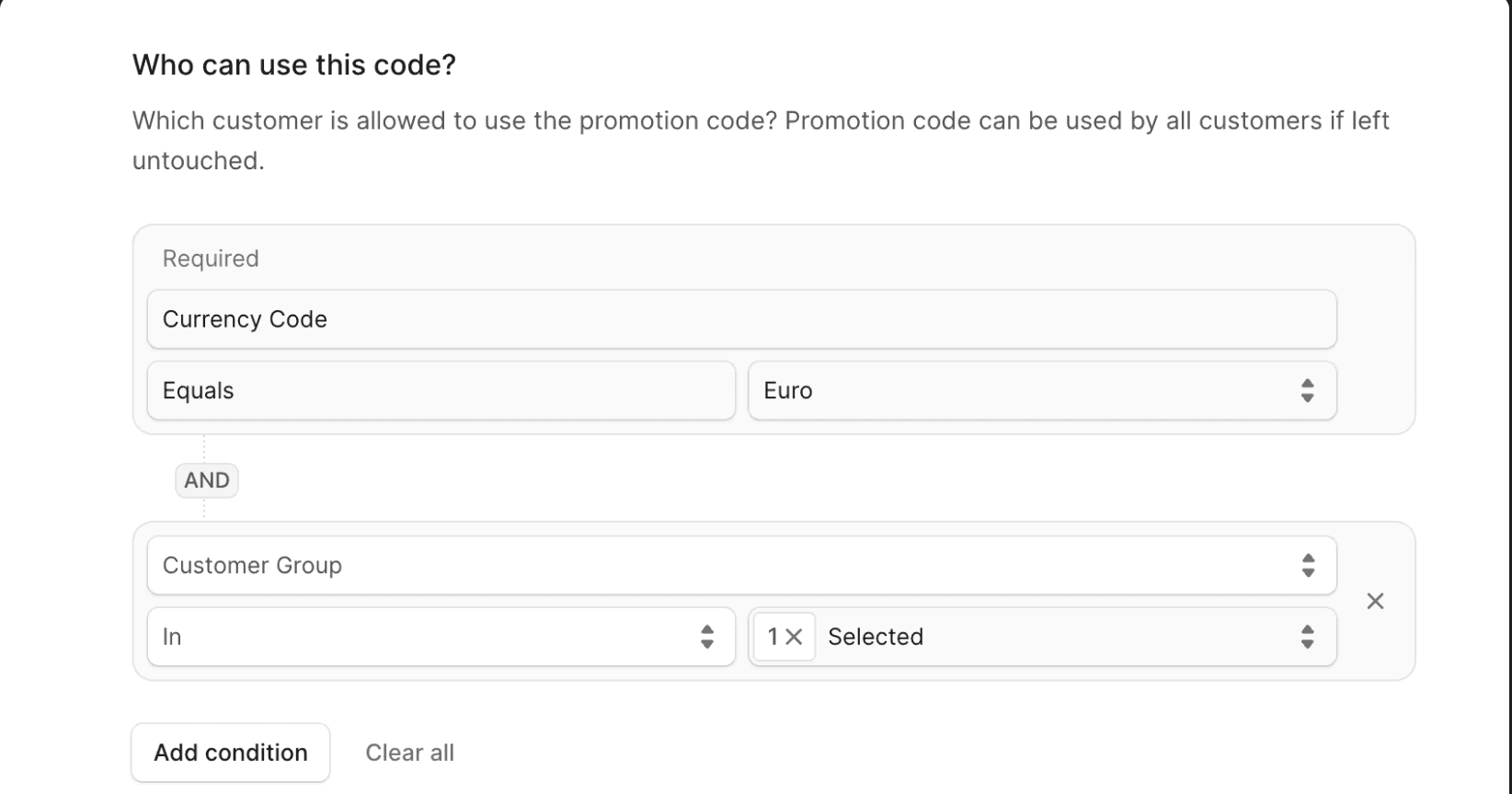
In the “Who can use this code?” section, you’ll specify the conditions that must be met for the promotion to be applicable for a customer’s cart.
You must set the currency code that this promotion applies to, which is shown as a required field.
To add a custom condition, click on the Add condition button. For each condition, you can set the following fields:
| Attribute | Description |
|---|---|
| Customer Group | The customer must belong / not belong to the specified customer group(s). |
| Region | The customer’s region must belong / not belong to the specified region(s). |
| Country | The customer’s country, which is determined through their shipping address, must belong / not belong to the specified countries. |
| Sales Channel | The customer must be / must not be placing the order from the specified sales channels. |
Then, select the operator of the condition:
| Operator | Description |
|---|---|
| In | The customer’s value for the chosen attribute must belong to the specified values. |
| Not In | The customer’s value for the chosen attribute must not belong to the specified values. |
Then, select the value of the attribute.
Example: If you want to allow only customers belonging to the VIP group to use this promotion:
- Set the Attribute to Customer Group.
- Set the Operator to In.
- Set the Value to the VIP customer group.
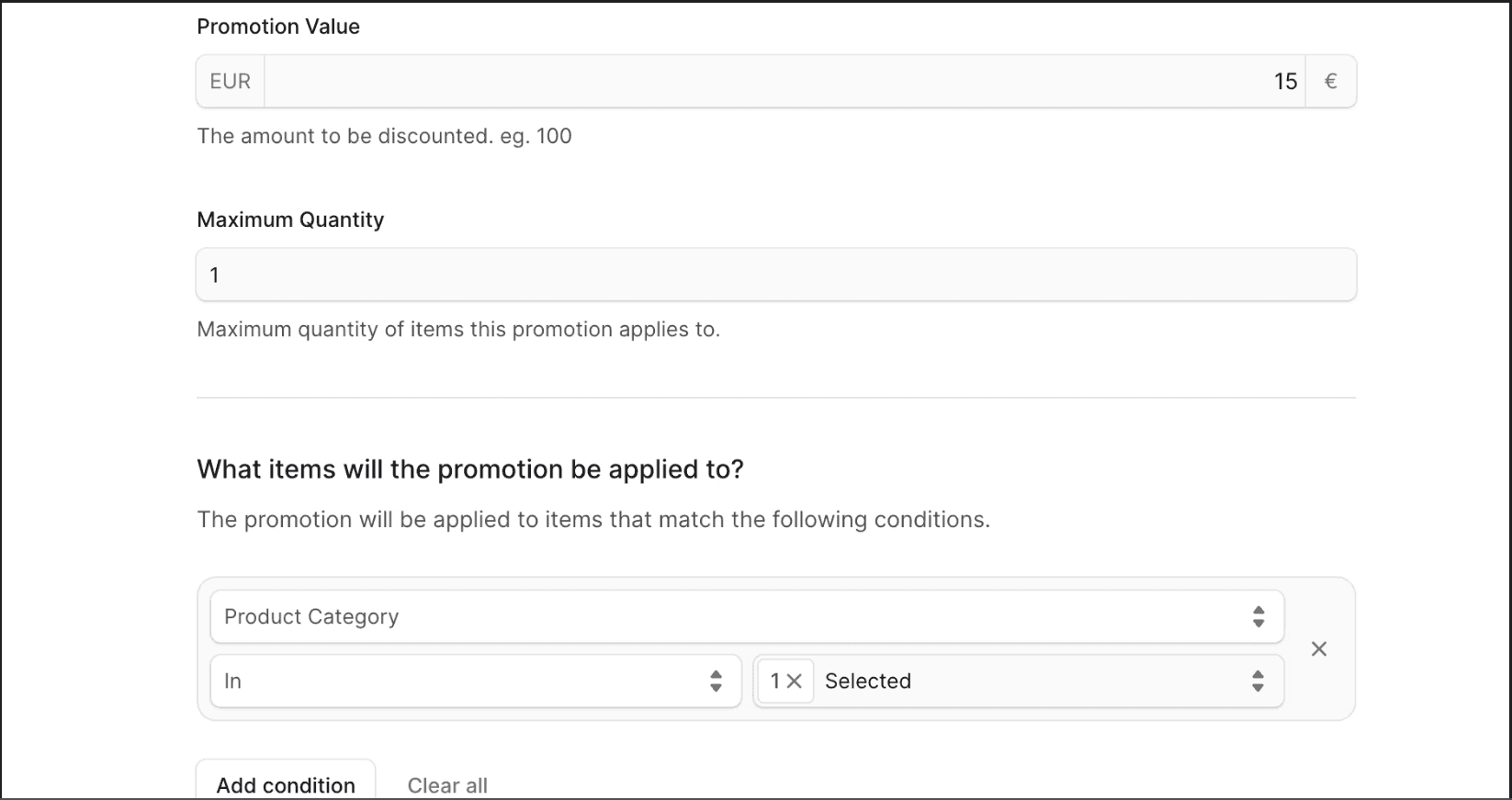
In the Promotion Value field, set the amount to be discounted from applicable products when the promotion is applied. The amount is in the currency you chose in the previous section.
In the Maximum Quantity field, set the maximum quantity line-item quantity that the promotion is applied to in the cart. For example, if set to 1 and the customer has a line item with quantity two in the cart, the promotion is only applied to one of them. This condition is applied on the quantity of every applicable item in the cart. For example, if set to 1 and the customer has two applicable items in the cart, the promotion is applied to one of each of them.
In the “What items will the promotion be applied to?” section, you’ll specify the items in the cart that the promotion can be applied to.
To add a condition, click on the Add condition button. For each condition, you can set the following fields:
| Attribute | Description |
|---|---|
| Product | The promotion applies / doesn’t apply to the specified product(s). |
| Product Category | The promotion applies / doesn’t apply to the products belonging to the specified categories. |
| Product Collection | The promotion applies / doesn’t apply to the products belonging to the specified collection(s). |
| Product Type | The promotion applies / doesn’t apply to the products belonging to the specified type(s). |
| Product Tag | The promotion applies / doesn’t apply to the products belonging to the specified tag(s). |
Then, select the operator of the condition:
| Operator | Description |
|---|---|
| In | The value of the item in the cart must belong to the specified values. |
| Not In | The value of the item in the cart must not belong to the specified values. |
Example: If you want to apply the promotion on products in the “Shirts” category:
- Set the Attribute to Product Category.
- Set the Operator to In.
- Set the Value to the Shirts product category.
Once you’re done, click Next and move on to the next step.
b. Amount off Order
If you chose the “Amount off Order” promotion type in the first section, fill out the following in the Details step:
- For the Method, choose how you want the promotion to be applied:
- Promotion code: The customer must enter the promotion’s code during checkout for the promotion to apply.
- Automatic: The promotion is applied automatically if the customer’s cart matches the promotion’s conditions.
- For the Status, choose Draft if you don’t want to allow customers to use the promotion yet, or Active otherwise.
- In the Code field, enter the promotion’s code. It must be a code that doesn’t have spaces. For example,
50OFF. - The “Does promotion include taxes” field allows you to customize when the promotion is applied on the cart.
- By default, this field is disabled, meaning the promotion is applied on the cart total before taxes.
- Enable this field to apply the promotion on the cart total after taxes.
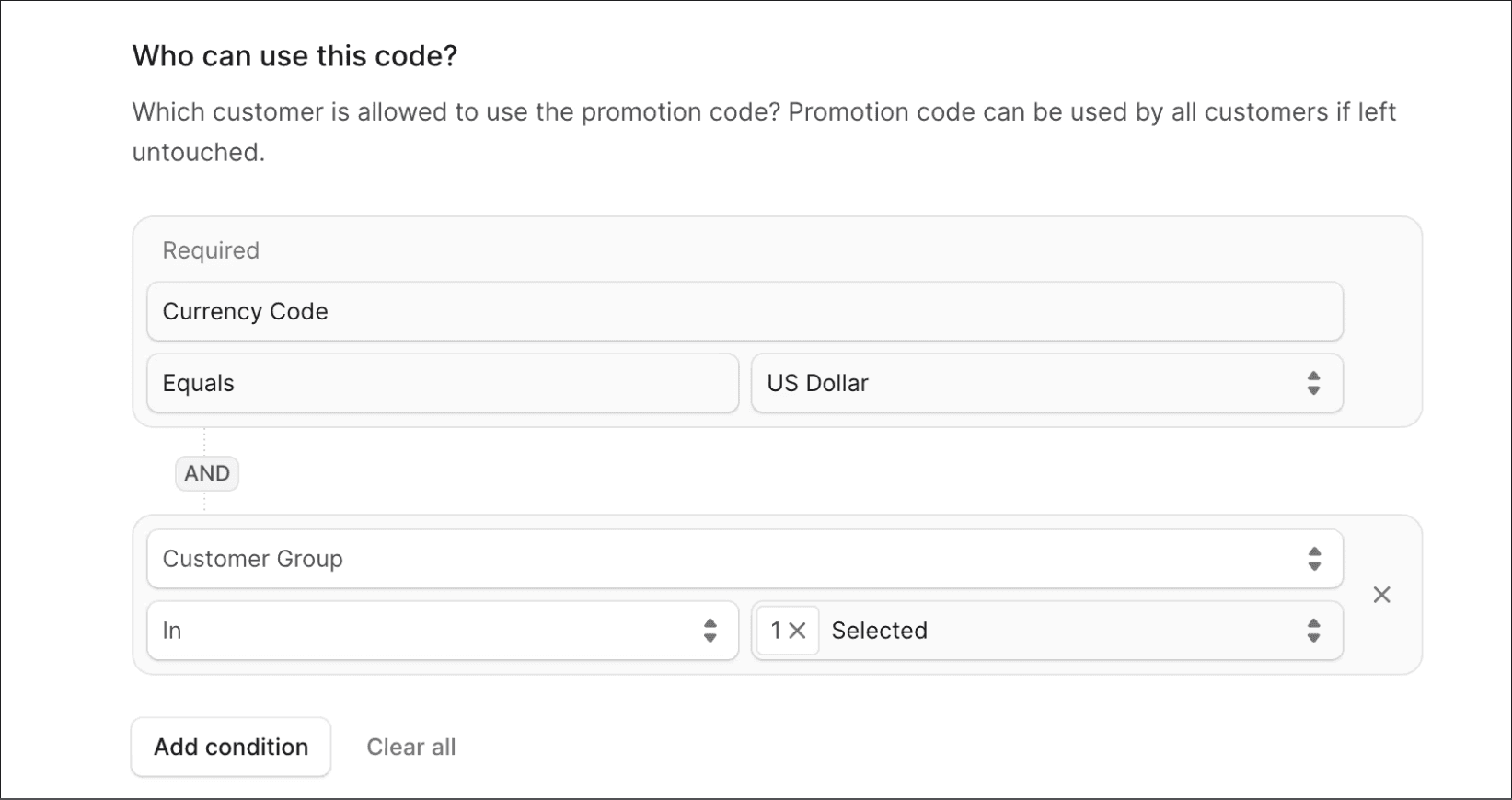
In the “Who can use this code?” section, you’ll specify the conditions that must be met for the promotion to be applicable for a customer’s cart.
You must set the currency code that this promotion applies to, which is shown as a required field.
To add a custom condition, click on the Add condition button. For each condition:
| Attribute | Description |
|---|---|
| Customer Group | The customer must belong / not belong to the specified customer group(s). |
| Region | The customer’s region must belong / not belong to the specified region(s). |
| Country | The customer’s country, which is determined through their shipping address, must belong / not belong to the specified countries. |
| Sales Channel | The customer must be / must not be placing the order from the specified sales channels. |
Then, select the operator of the condition:
| Operator | Description |
|---|---|
| In | The customer’s value for the chosen attribute must belong to the specified values. |
| Not In | The customer’s value for the chosen attribute must not belong to the specified values. |
Then, select the value of the attribute.
In the Promotion Value field, set the amount to be discounted from the order when the promotion is applied. The amount is in the currency you chose in the previous section.
Once you’re done, click Next and move on to the next step.
c. Percentage off Products
If you chose the “Percentage off Products” promotion type in the first section, fill out the following in the Details step:
- For the Method, choose how you want the promotion to be applied:
- Promotion code: The customer must enter the promotion’s code during checkout for the promotion to apply.
- Automatic: The promotion is applied automatically if the customer’s cart matches the promotion’s conditions.
- For the Status, choose Draft if you don’t want to allow customers to use the promotion yet, or Active otherwise.
- In the Code field, enter the promotion’s code. It must be a code that doesn’t have spaces. For example,
20OFF. - The “Does promotion include taxes” field allows you to customize when the promotion is applied on the cart.
- By default, this field is disabled, meaning the promotion is applied on the cart total before taxes.
- Enable this field to apply the promotion on the cart total after taxes.
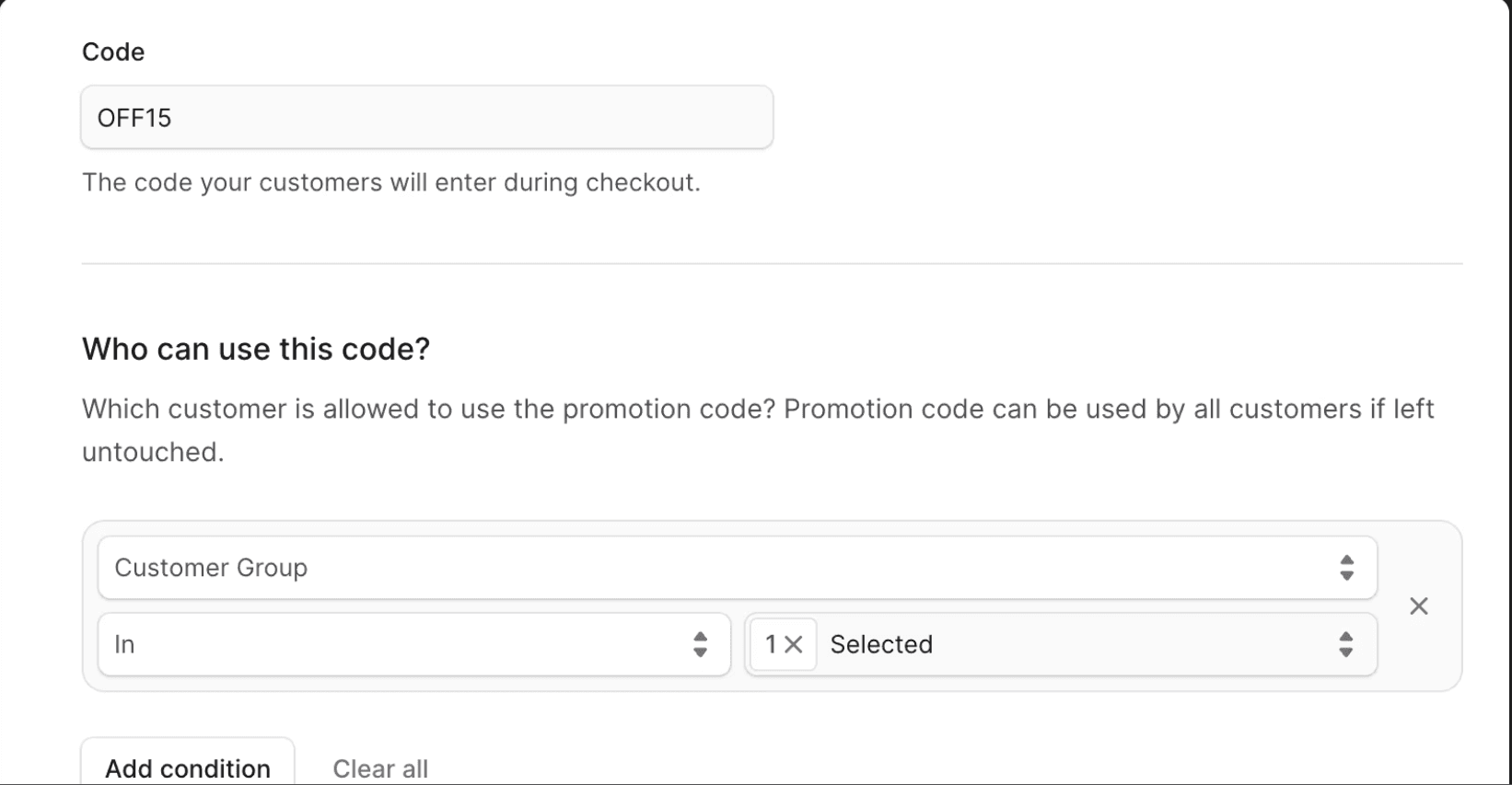
In the “Who can use this code?” section, you’ll specify the conditions that must be met for the promotion to be applicable for a customer’s cart.
You must set the currency code that this promotion applies to, which is shown as a required field.
To add a custom condition, click on the Add condition button. For each condition, you can set the following fields:
| Attribute | Description |
|---|---|
| Customer Group | The customer must belong / not belong to the specified customer group(s). |
| Region | The customer’s region must belong / not belong to the specified region(s). |
| Country | The customer’s country, which is determined through their shipping address, must belong / not belong to the specified countries. |
| Sales Channel | The customer must be / must not be placing the order from the specified sales channels. |
Then, select the operator of the condition:
| Operator | Description |
|---|---|
| In | The customer’s value for the chosen attribute must belong to the specified values. |
| Not In | The customer’s value for the chosen attribute must not belong to the specified values. |
Then, select the value of the attribute.
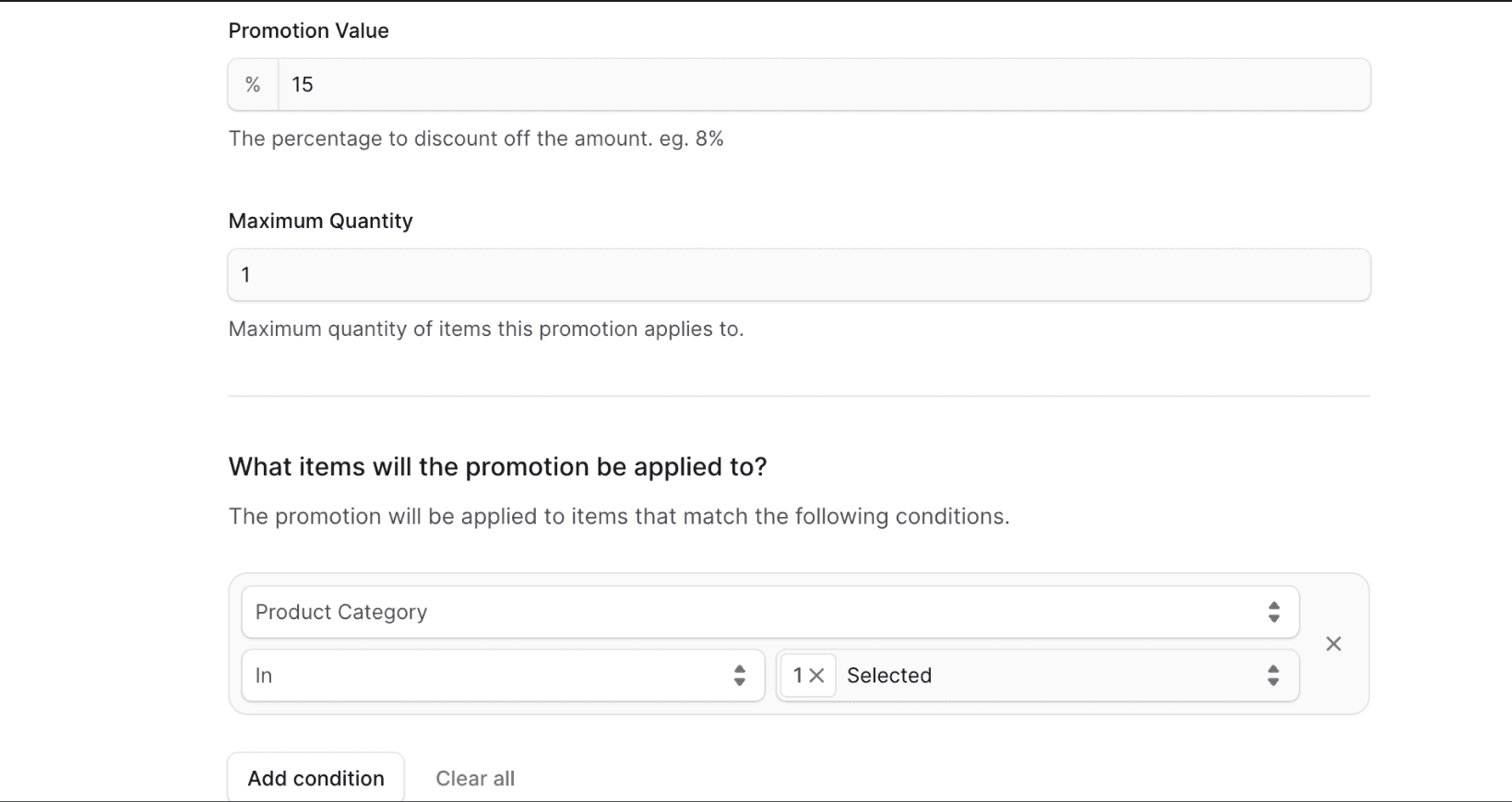
In the Promotion Value field, set the percentage to be discounted from applicable products when the promotion is applied.
In the Maximum Quantity field, set the maximum quantity line-item quantity that the promotion is applied to in the cart. For example, if set to 1 and the customer has a line item with quantity two in the cart, the promotion is only applied to one of them. This condition is applied on the quantity of every applicable item in the cart. For example, if set to 1 and the customer has two applicable items in the cart, the promotion is applied to one of each of them.
In the “What items will the promotion be applied to?” section, you’ll specify the items in the cart that the promotion can be applied to.
To add a condition, click on the Add condition button. For each condition, you can set the following fields:
| Attribute | Description |
|---|---|
| Product | The promotion applies / doesn’t apply to the specified product(s). |
| Product Category | The promotion applies / doesn’t apply to the products belonging to the specified categories. |
| Product Collection | The promotion applies / doesn’t apply to the products belonging to the specified collection(s). |
| Product Type | The promotion applies / doesn’t apply to the products belonging to the specified type(s). |
| Product Tag | The promotion applies / doesn’t apply to the products belonging to the specified tag(s). |
Then, select the operator of the condition:
| Operator | Description |
|---|---|
| In | The value of the item in the cart must belong to the specified values. |
| Not In | The value of the item in the cart must not belong to the specified values. |
Once you’re done, click Next and move on to the next step.
d. Percentage off Order
If you chose the “Percentage off Order” promotion type in the first section, fill out the following in the Details step:
- For the Method, choose how you want the promotion to be applied:
- Promotion code: The customer must enter the promotion’s code during checkout for the promotion to apply.
- Automatic: The promotion is applied automatically if the customer’s cart matches the promotion’s conditions.
- For the Status, choose Draft if you don’t want to allow customers to use the promotion yet, or Active otherwise.
- In the Code field, enter the promotion’s code. It must be a code that doesn’t have spaces. For example,
20OFF. - The “Does promotion include taxes” field allows you to customize when the promotion is applied on the cart.
- By default, this field is disabled, meaning the promotion is applied on the cart total before taxes.
- Enable this field to apply the promotion on the cart total after taxes.
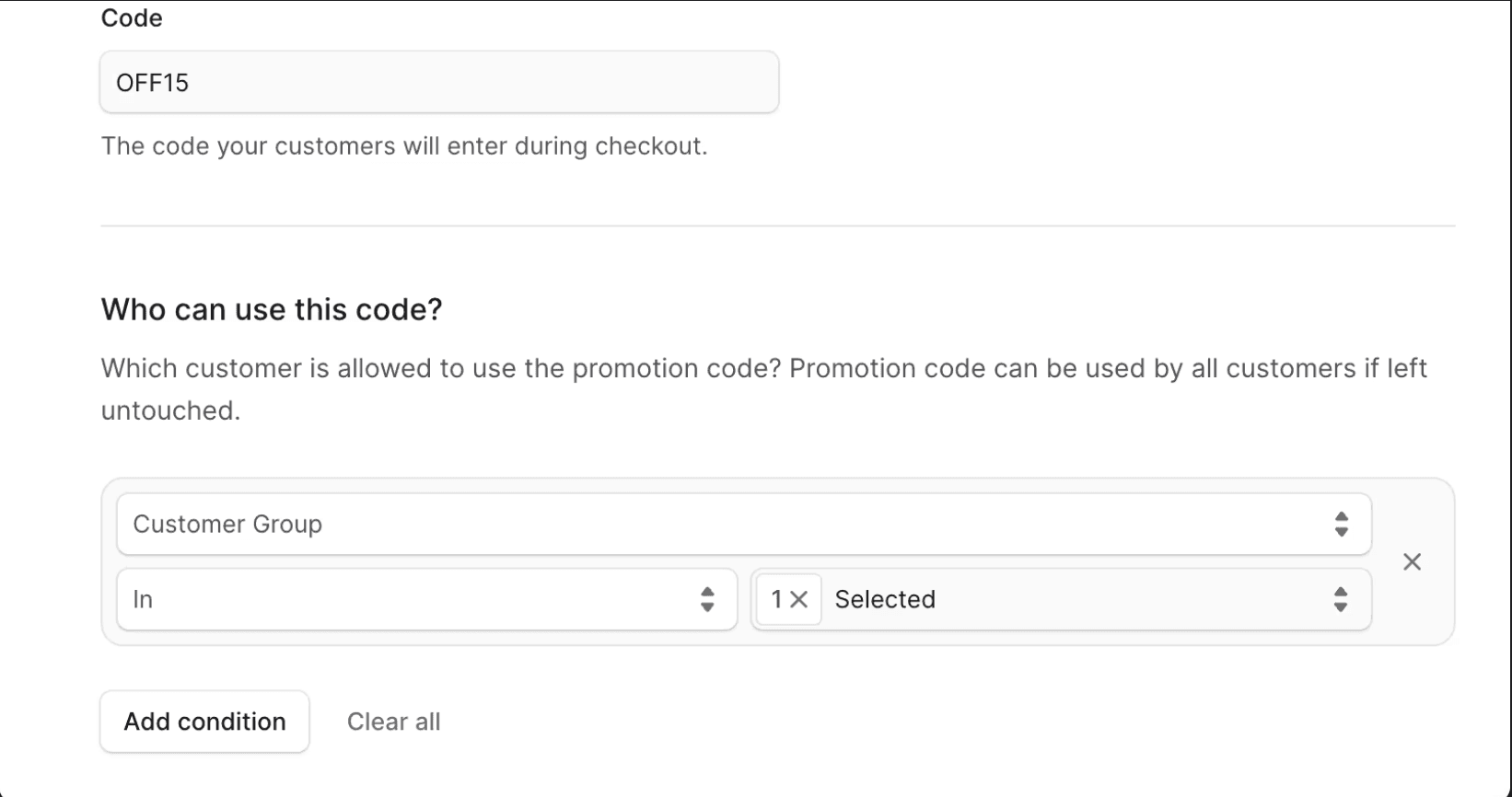
In the “Who can use this code?” section, you’ll specify the conditions that must be met for the promotion to be applicable for a customer’s cart.
You must set the currency code that this promotion applies to, which is shown as a required field.
To add a custom condition, click on the Add condition button. For each condition, you can set the following fields:
| Attribute | Description |
|---|---|
| Customer Group | The customer must belong / not belong to the specified customer group(s). |
| Region | The customer’s region must belong / not belong to the specified region(s). |
| Country | The customer’s country, which is determined through their shipping address, must belong / not belong to the specified countries. |
| Sales Channel | The customer must be / must not be placing the order from the specified sales channels. |
Then, select the operator of the condition:
| Operator | Description |
|---|---|
| In | The customer’s value for the chosen attribute must belong to the specified values. |
| Not In | The customer’s value for the chosen attribute must not belong to the specified values. |
Then, select the value of the attribute.
In the Promotion Value field, set the percentage to be discounted from the order when the promotion is applied.
Once you’re done, click Next and move on to the next step.
e. Buy X Get Y
If you chose the “Buy X Get Y” promotion type in the first section, fill out the following in the Details step:
- For the Method, choose how you want the promotion to be applied:
- Promotion code: The customer must enter the promotion’s code during checkout for the promotion to apply.
- Automatic: The promotion is applied automatically if the customer’s cart matches the promotion’s conditions.
- For the Status, choose Draft if you don’t want to allow customers to use the promotion yet, or Active otherwise.
- In the Code field, enter the promotion’s code. It must be a code that doesn’t have spaces. For example,
BUY1GET1.
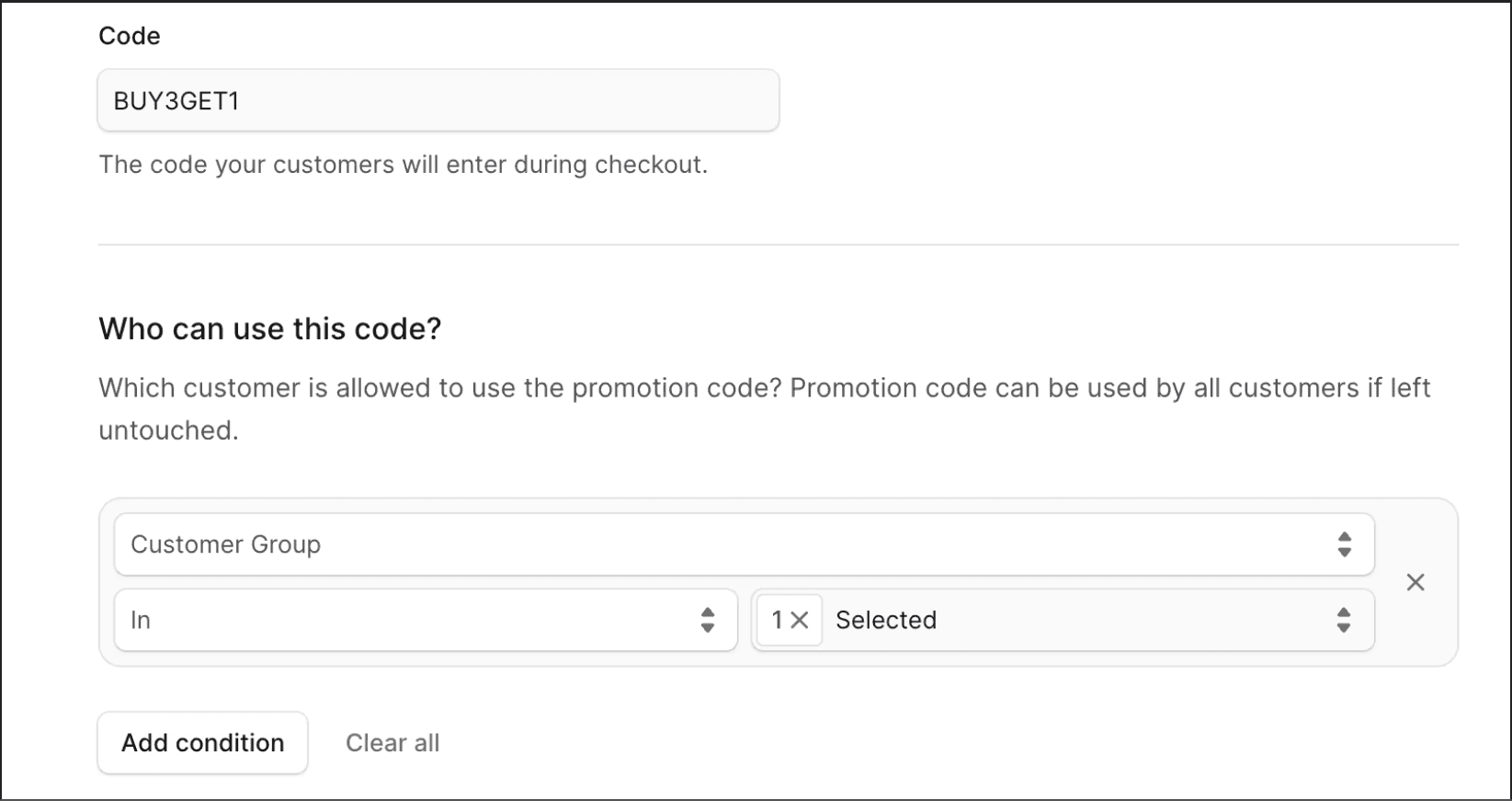
In the “Who can use this code?” section, you’ll specify the conditions that must be met for the promotion to be applicable for a customer’s cart.
You must set the currency code that this promotion applies to, which is shown as a required field.
To add a custom condition, click on the Add condition button. For each condition, you can set the following fields:
| Attribute | Description |
|---|---|
| Customer Group | The customer must belong / not belong to the specified customer group(s). |
| Region | The customer’s region must belong / not belong to the specified region(s). |
| Country | The customer’s country, which is determined through their shipping address, must belong / not belong to the specified countries. |
| Sales Channel | The customer must be / must not be placing the order from the specified sales channels. |
Then, select the operator of the condition:
| Operator | Description |
|---|---|
| In | The customer’s value for the chosen attribute must belong to the specified values. |
| Not In | The customer’s value for the chosen attribute must not belong to the specified values. |
Then, select the value of the attribute.
In the “What items will the promotion be applied to?” section, you’ll specify the “buy” and “get” conditions for the promotion.
Click on the Add condition button in each of the “Buy” and “Get” sections to specify what items the promotion applies to.
For each condition, you can set the following fields:
| Attribute | Description |
|---|---|
| Product | The promotion applies / doesn’t apply to the specified product(s). |
| Product Category | The promotion applies / doesn’t apply to the products belonging to the specified categories. |
| Product Collection | The promotion applies / doesn’t apply to the products belonging to the specified collection(s). |
| Product Type | The promotion applies / doesn’t apply to the products belonging to the specified type(s). |
| Product Tag | The promotion applies / doesn’t apply to the products belonging to the specified tag(s). |
Then, select the operator of the condition:
| Operator | Description |
|---|---|
| In | The value of the item in the cart must belong to the specified values. |
| Not In | The value of the item in the cart must not belong to the specified values. |
In the “How many items need to be bought?” field, specify how many qualifying items the customer must purchase to receive the offer.
In the “How many items will be discounted?” field, specify how many items will receive the discount when the promotion applies.
Then, set the discount type:
- Percentage: Apply a percentage discount on the qualifying items.
- Fixed amount: Apply a fixed amount discount on the qualifying items.
Once you’re done, click Next and move on to the next step.
f. Free Shipping
If you chose the “Free Shipping” promotion type in the first section, fill out the following in the Details step:
- For the Method, choose how you want the promotion to be applied:
- Promotion code: The customer must enter the promotion’s code during checkout for the promotion to apply.
- Automatic: The promotion is applied automatically if the customer’s cart matches the promotion’s conditions.
- For the Status, choose Draft if you don’t want to allow customers to use the promotion yet, or Active otherwise.
- In the Code field, enter the promotion’s code. It must be a code that doesn’t have spaces. For example,
FREESHIP.
In the “Who can use this code?” section, you’ll specify the conditions that must be met for the promotion to be applicable for a customer’s cart.
You must set the currency code that this promotion applies to, which is shown as a required field.
To add a custom condition, click on the Add condition button. For each condition, you can set the following fields:
| Attribute | Description |
|---|---|
| Customer Group | The customer must belong / not belong to the specified customer group(s). |
| Region | The customer’s region must belong / not belong to the specified region(s). |
| Country | The customer’s country, which is determined through their shipping address, must belong / not belong to the specified countries. |
| Sales Channel | The customer must be / must not be placing the order from the specified sales channels. |
Then, select the operator of the condition:
| Operator | Description |
|---|---|
| In | The customer’s value for the chosen attribute must belong to the specified values. |
| Not In | The customer’s value for the chosen attribute must not belong to the specified values. |
Then, select the value of the attribute.
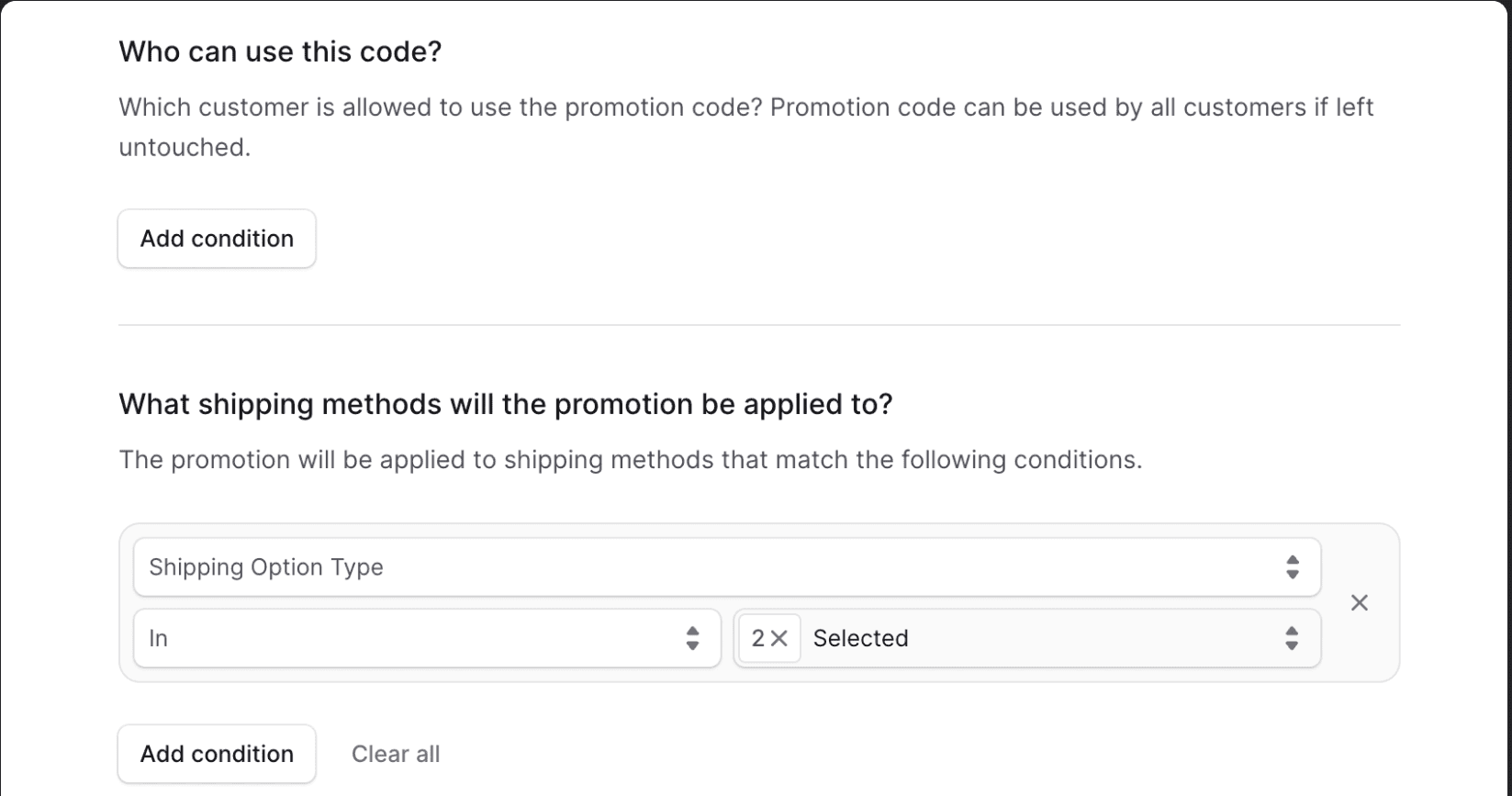
Once you’re done, click Next and move on to the next step.
Step 3: Campaign
The promotion can be associated with a campaign, giving you granular control over its budget, and when it starts and ends.
In the campaigns section, you can select whether to:
- Continue Without Campaign: If selected, you can proceed and create the promotion.
- Continue with an Existing Campaign: If selected, you’ll need to select the campaign that the promotion will belong to.
- Continue with a New Campaign: If selected, you’ll see fields to create a new campaign.
Create Campaign
If you selected a new campaign, you need to fill out the following to create a campaign and add the promotion to it:
- In the Name field, enter the campaign’s name.
- In the Identifier field, enter a custom identifier for the campaign.
This is useful if you’re associating the campaign with a campaign in an external system, for example. - Optionally, enter a description, and start and end dates.
- If a start date is specified, all promotions in the campaign can be used after the specified date.
- If an end date is specified, all promotions in the campaign can’t be used after the specified date.
Under the campaign budget, you can add limits that automatically expire the campaign, which means promotions in that campaign can’t be used anymore.
For Type, you can choose to set the budget either based on:
| Type | Description |
|---|---|
| Usage | How many times the promotions in the campaign can be used. Once the number of times exceeds the limit, the campaign and its promotions expire. |
| Spend | The total amount that can be discounted by the promotions in the campaign. Once the total amount discounted exceeds the limit, the campaign and its promotions expire. (This is disabled if you select the “Buy X Get Y” or “Free Shipping” promotion types.) |
In the Limit field, enter the budget limit based on the chosen type.
Once you’re done, click on the Save button.
You can now manage the promotion you created.