Import Products in Liqnic Admin
In this guide, you’ll learn how to import products into your Liqnic store.
Import Products from a CSV File
If you’re migrating from another commerce platform, or from an earlier version of Liqnic, you can import products using a CSV file.
When you import the CSV file, Liqnic will either create or update products based on the CSV file you upload.
CSV File Format
In the import form, you can download a template CSV file to see the format required for the import.
CSV File Rows
Each row in the CSV file represents a product variant to create or update. So, if a product has multiple variants, each variant will have its own row in the CSV file.
For example, a product with two variants (red and blue) will have two rows in the CSV file, one for the red variant and one for the blue variant.
CSV File Columns
The columns in the CSV file hold the details of the product variant and its associated product. The CSV file can have the following columns:
| Column | Description |
|---|---|
| Product Id | The ID for an existing product to update. If provided, no other columns are required. |
| Product Handle | A unique identifier used in the product’s URL on the storefront. It must be unique, contain lowercase letters, numbers, and hyphens (-). If not specified, Liqnic will generate a handle from the title. |
| Product Title | The product’s title. This is required if you don’t provide a Product Id. |
| Product Status | Can be draft (default), published, proposed, or rejected. |
| Product Description | Description of the product. |
| Product Subtitle | Subtitle for the product. |
| Product External Id | ID of the product in an external system, such as an ERP. |
| Product Thumbnail | URL of the product’s thumbnail image. |
| Product Collection Id | The ID of the collection the product belongs to. |
| Product Type Id | The ID of the product type. |
| Product Category * | ID of a product category, where * is the number of the category. Allows multiple categories. For example, Product Category 1. |
| Product Discountable | Whether the product can be discounted. Can be true or false. |
| Product Height | Height of the product. |
| Product Hs Code | Harmonized System (HS) code for the product. |
| Product Image * | URL of a product image, where * is the image’s number. For example, Product Image 1. |
| Product Length | Length of the product. |
| Product Material | Material of the product. |
| Product Mid Code | Manufacturer Identification Number (MID) for the product. |
| Product Origin Country | Country of origin for the product. |
| Product Tag * | ID of the product’s tag, where * is the tag’s number. For example, Product Tag 1. |
| Product Sales Channel * | ID of a sales channel the product is available in, where * is the sales channel’s number. For example, Product Sales Channel 1. |
| Product Weight | Weight of the product. |
| Product Width | Width of the product. |
| Variant Id | ID for an existing variant to update. The variant must belong to the product specified in the Product Id column. If provided, no other variant-related columns are required. |
| Variant Title | Title of the variant. |
| Variant Sku | SKU of the variant. |
| Variant Upc | UPC of the variant. |
| Variant Ean | EAN of the variant. |
| Variant Hs Code | Harmonized System (HS) code for the variant. |
| Variant Mid Code | Manufacturer Identification Number (MID) for the variant. |
| Variant Manage Inventory | Whether Liqnic manages the variant’s inventory. Can be true or false. |
| Variant Allow Backorder | Whether the variant allows backorders. Can be true or false. |
| Variant Barcode | Barcode of the variant. |
| Variant Height | Height of the variant. |
| Variant Length | Length of the variant. |
| Variant Material | Material of the variant. |
| Variant Metadata | Metadata for the variant. |
| Variant Option * Name | Name of the variant’s option, where * is the option’s number. For example, Variant Option 1 Name. |
| Variant Option * Value | Value of the variant’s option, where * is the option’s number. For example, Variant Option 1 Value. |
| Variant Origin Country | Country of origin for the variant. |
| Variant Price * | Price of the variant in a currency, where * is the currency’s ISO code. For example, Variant Price USD. |
| Variant Price [X] Y | Price of the variant in a region, where X is the region’s name, and Y is the ISO currency code of the region. For example, Variant Price Europe [EUR]. |
| Variant Variant Rank | Rank of the variant among its siblings. Can be 0 or higher. |
| Variant Weight | Weight of the variant. |
| Variant Width | Width of the variant. |
| Shipping Profile Id | ID of the shipping profile that the product belongs to. |
Import List of Products
Prerequisites:
- A CSV file to import.
To import products:
- Go to the Products page.
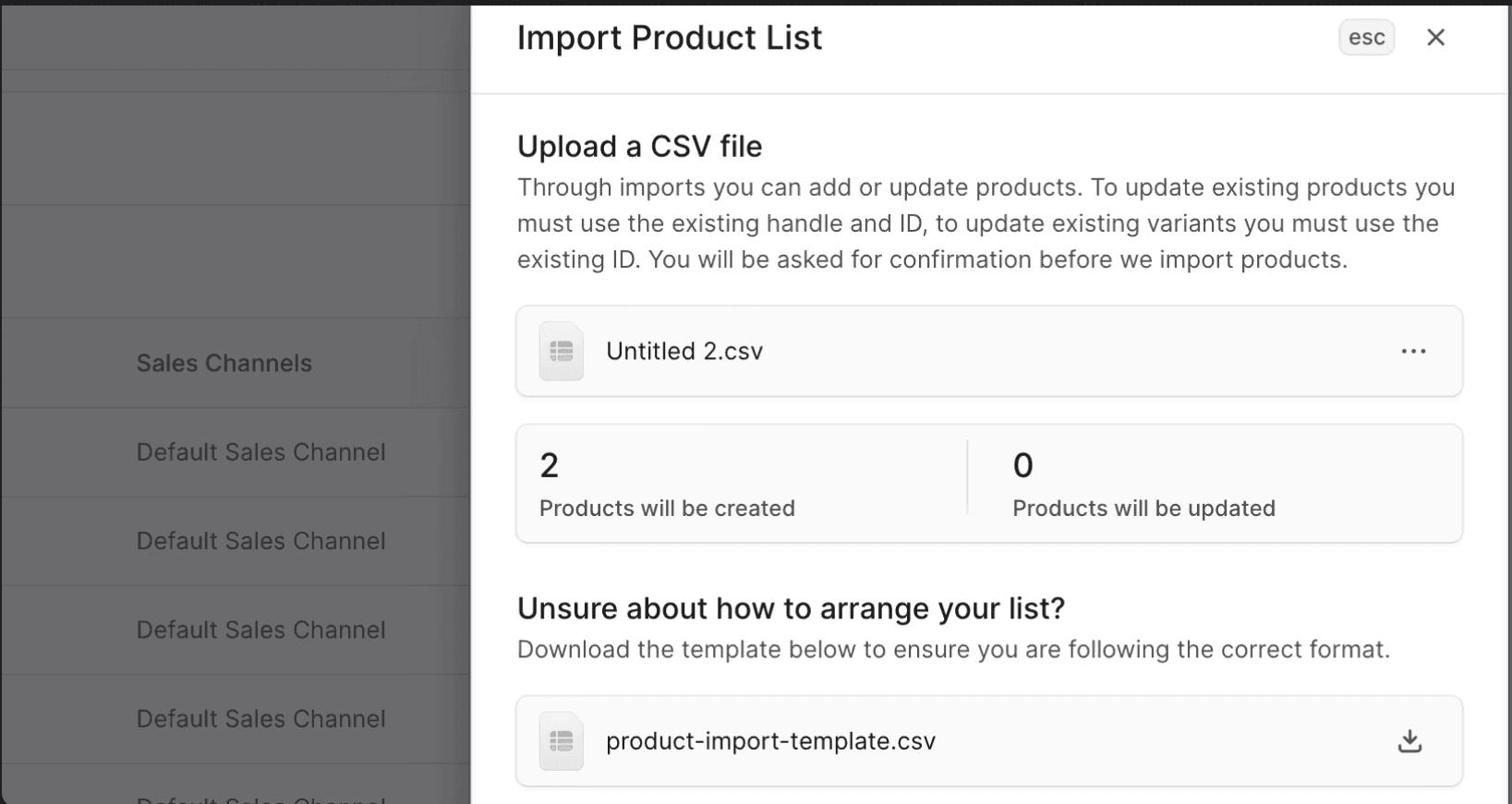
- Click on the Import button in the main section’s header.
- In the side window:
- Download the template CSV file if unsure of the format.
- Upload the CSV file by drag-and-drop or using the file picker.
- After uploading:
- Check the number of products to be created or updated.
- To remove the uploaded file, click the icon and choose Delete.
- Once done, click the Import button.
Note: If you face any errors or difficulties, contact your technical support team as this could be an issue with the storage integration used.
This starts the import process which may take some time.
Check Import Status
To check whether the import is in progress, finished, or failed:
- Click on the notifications icon in the page’s header.
- Find the product import, which should be the latest item on the list.
- The text on the import item will explain the current state of the import.
Note: If the product import fails, contact your technical support to check the error logs.