Create Product in Liqnic Admin
In this guide, you’ll learn how to create a new product using the Liqnic Admin.
Types of Products to Create
You can create different types of products in Liqnic:
- A simple product without variants, such as a painting.
- A product with variants, such as a t-shirt with different colors and sizes.
- A product that has multi-part variants, such as a bicycle that consists of a frame, wheels, and handlebars. Each variant has an inventory kit that makes up the product’s parts.
- A product that is sold as a bundle, such as a camera bundle that consists of a camera, a lens, and a camera bag. Each variant has an inventory kit of each product variant’s inventory items.
This guide covers the general steps to create any of these products. You can also refer to the specific guides for creating multi-part products and bundle products.
How to Create a Product
To create a new product:
- Go to the Products page from the sidebar.
- Click on the Create button in the main section’s header.
This opens a form with three steps: Details, Organize, and Variants. There’s a fourth optional step, Inventory Kits, that only appears if you enable the Has inventory kit toggle for a variant.
1. Details Step
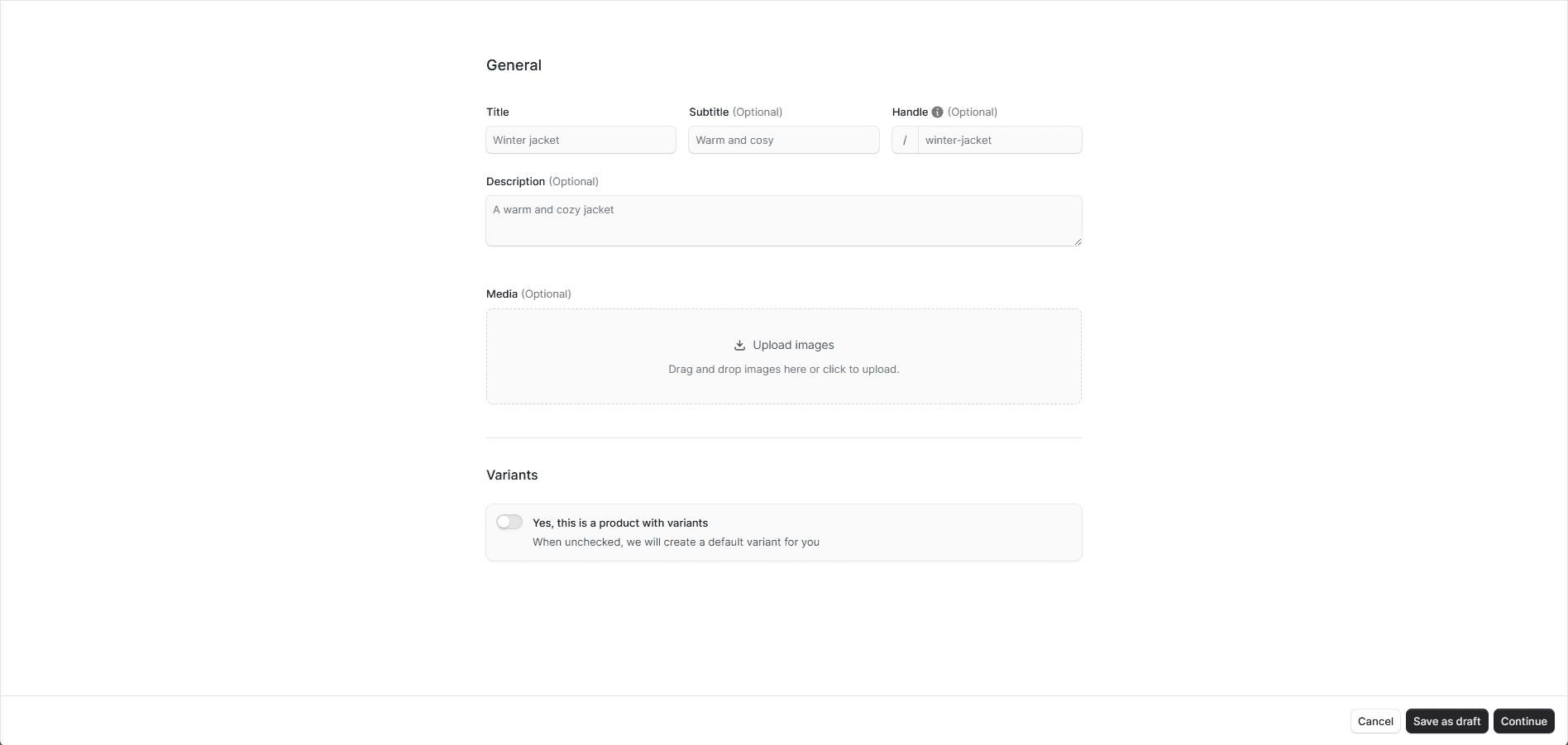
In the first Details step, you can enter the product’s general information and specify its variants and options:
- Enter the product’s name in the Title field. This is the only required field.
- Optionally enter a Subtitle, Handle, and Description.
The value of the Handle field is used in the product’s URL on the storefront. It must be unique, lowercase, and can only contain letters, numbers, and hyphens (-). If not specified, Liqnic will automatically generate a handle from the title.
- Optionally upload images of the product under the Liqnic section.
- To set an image as the thumbnail:
- Click the options icon (⋮) in the image’s row.
- Choose Make thumbnail from the dropdown.
- To set an image as the thumbnail:
- If the product has variants, such as different colors or sizes, enable the “Yes, this is a product with variants” toggle.
- Add product options (for example, Color, Size) and values (for example, Black, White, Small, Large).
- Separate multiple values by commas.
- Click Add to create a new option.
- Variants will be automatically generated from the combination of options.
- You can disable individual variants by unchecking their checkboxes.
Once you’re done, click Continue.
2. Organize Step
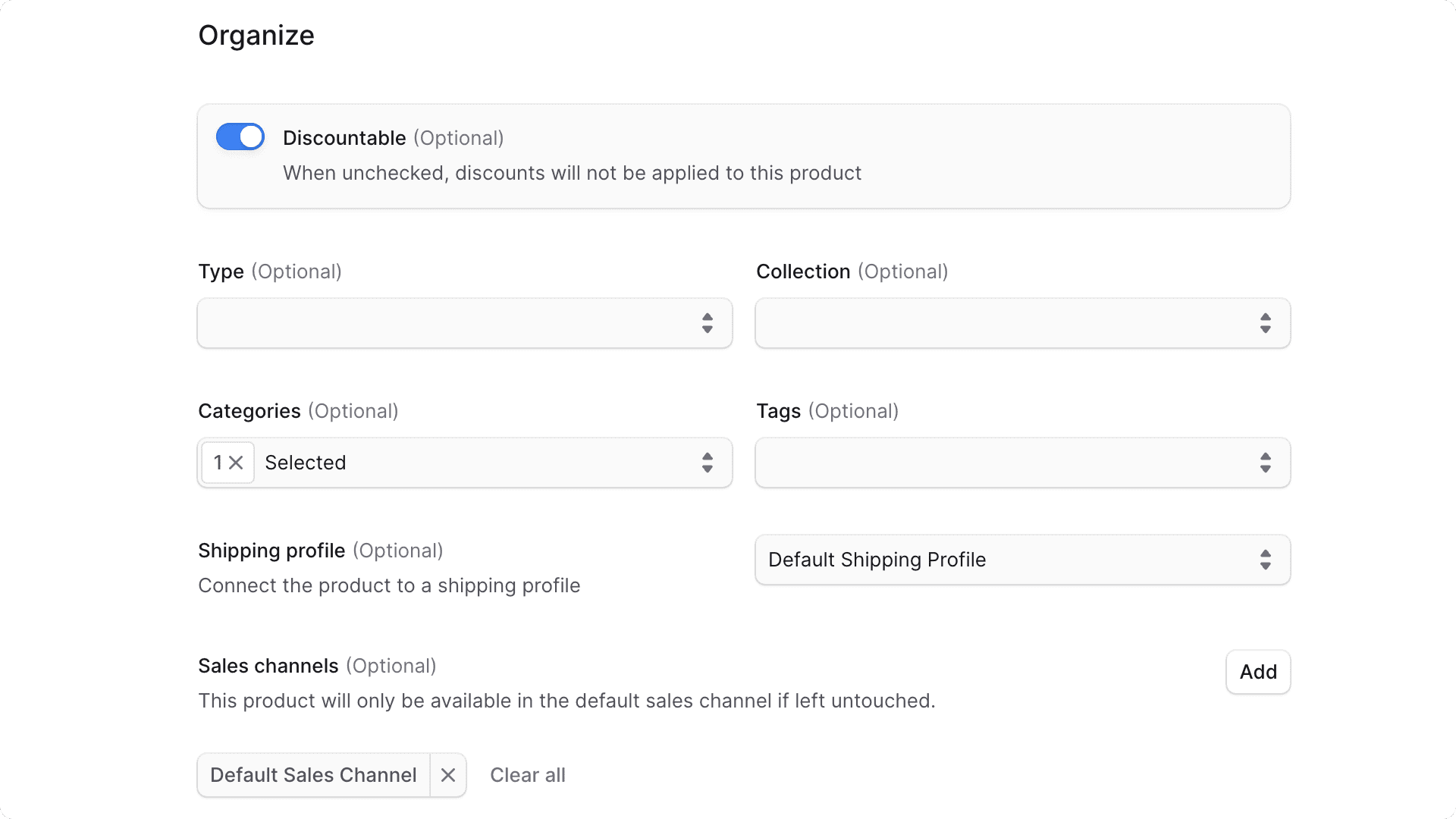
In the second Organize step, you can organize the product by adding it to collections, categories, and other groups:
- Disable the Discountable toggle if you don’t want discounts applied to this product.
- Optionally choose a Product Type (created under Settings → Product Types).
- Optionally choose a Collection (created under the Products domain).
- Optionally choose Categories (created under the Products domain).
- Optionally add Tags (created under Settings → Product Tags).
- Optionally select a Shipping Profile (created under Settings → Shipping Profiles).
You can also define which Sales Channels this product is available in:
- Click the Add button next to the Sales channels section.
- In the list that opens, check the sales channels you want to add.
- Click Save when done.
Once complete, click Continue.
3. Variants Step
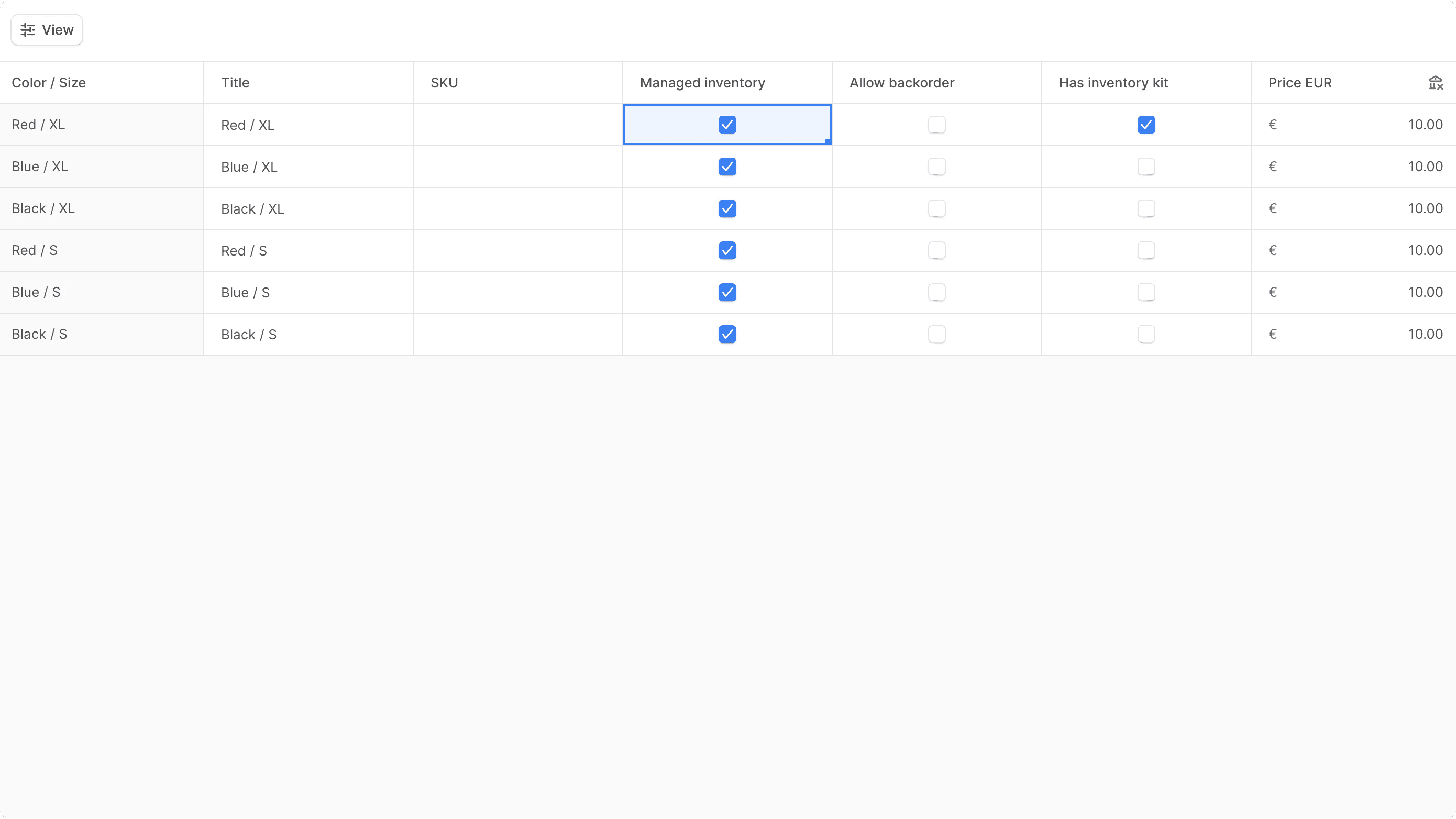
In the third Variants step, you can manage the product’s variants created in the first step. This step shows a bulk editor with a row for each variant.
| Column | Description |
|---|---|
| Title | Change the variant’s title. |
| SKU | Set the variant’s SKU. |
| Managed Inventory | Enable to let Liqnic manage stock. If disabled, the variant is always in stock. |
| Allow Backorder | Enable to allow purchases when out of stock. |
| Has Inventory Kit | Enable to define a multi-part or bundled product. Adds a fourth step: Inventory Kits. |
| Price Columns | Enter prices for each currency and region configured in Liqnic. |
Price column icons:
- Tax-exclusive: Liqnic adds tax during checkout.
- Tax-inclusive: Taxes are included in the listed price.
Tax behavior is configured in the currency’s or region’s settings.
Once you’re done, click Publish if there are no more steps, or Continue to go to the next step.
4. Inventory Kits Step (Optional)
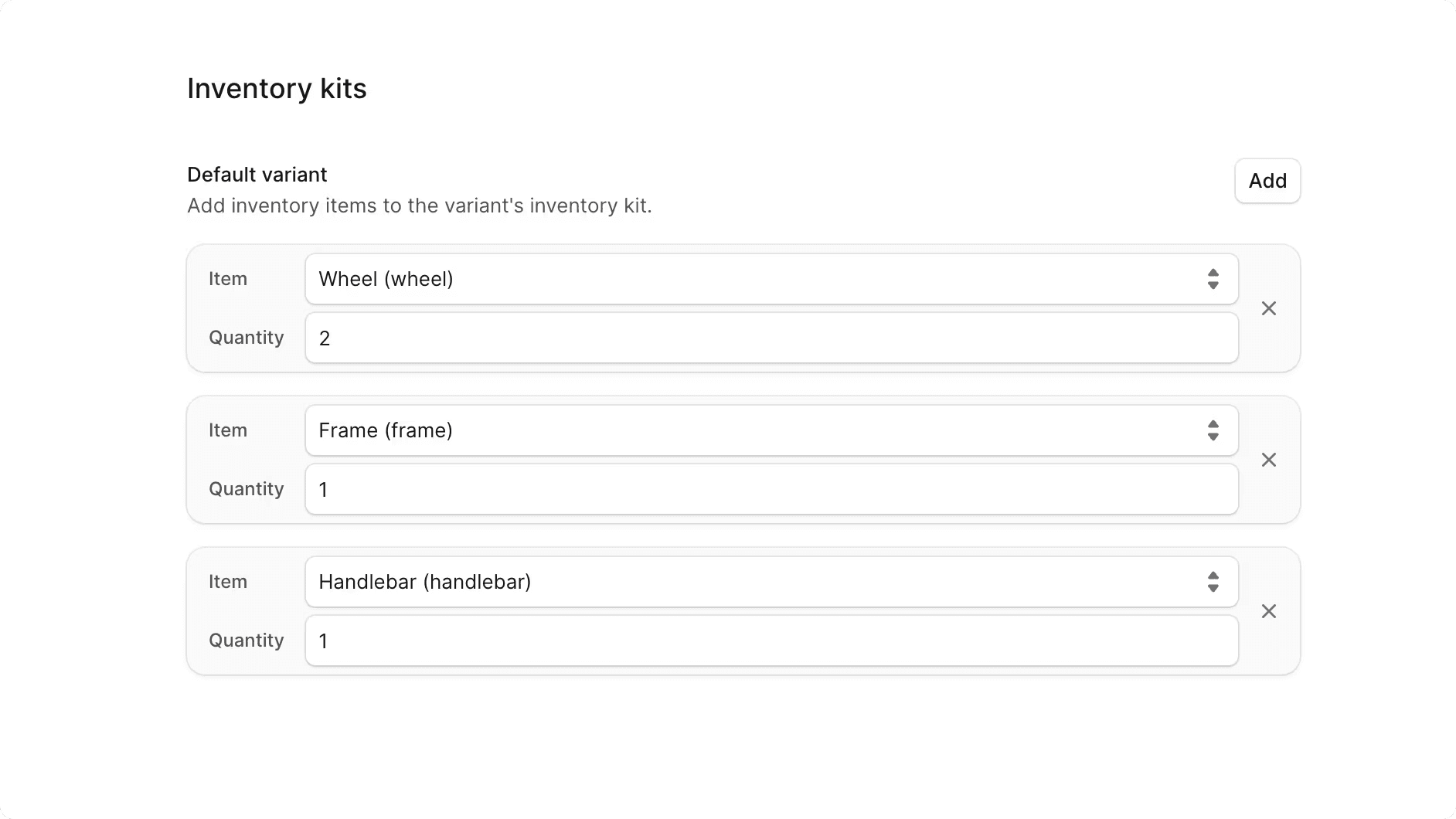
If you enabled Has inventory kit for a variant in the previous step, you’ll see a fourth step — Inventory Kits.
Inventory kits allow you to create:
- Multi-part products – products made up of multiple components (for example, a bicycle with a frame, wheels, and handlebars).
- Bundled products – bundles of separate products sold together (for example, a camera, lens, and bag).
To manage the inventory kit for each variant:
- Select an inventory item from the dropdown.
- Enter the quantity required for one unit of the variant.
- Example: If the variant is a bicycle and the inventory item is a wheel, enter 2.
- Click Add to include more inventory items.
Once finished, click Publish.
You’ve now successfully created a product in Liqnic Admin. You can manage it further from the Products list.