Edit Product in Liqnic Admin
In this guide, you’ll learn about editing a product’s details in the Liqnic Admin.
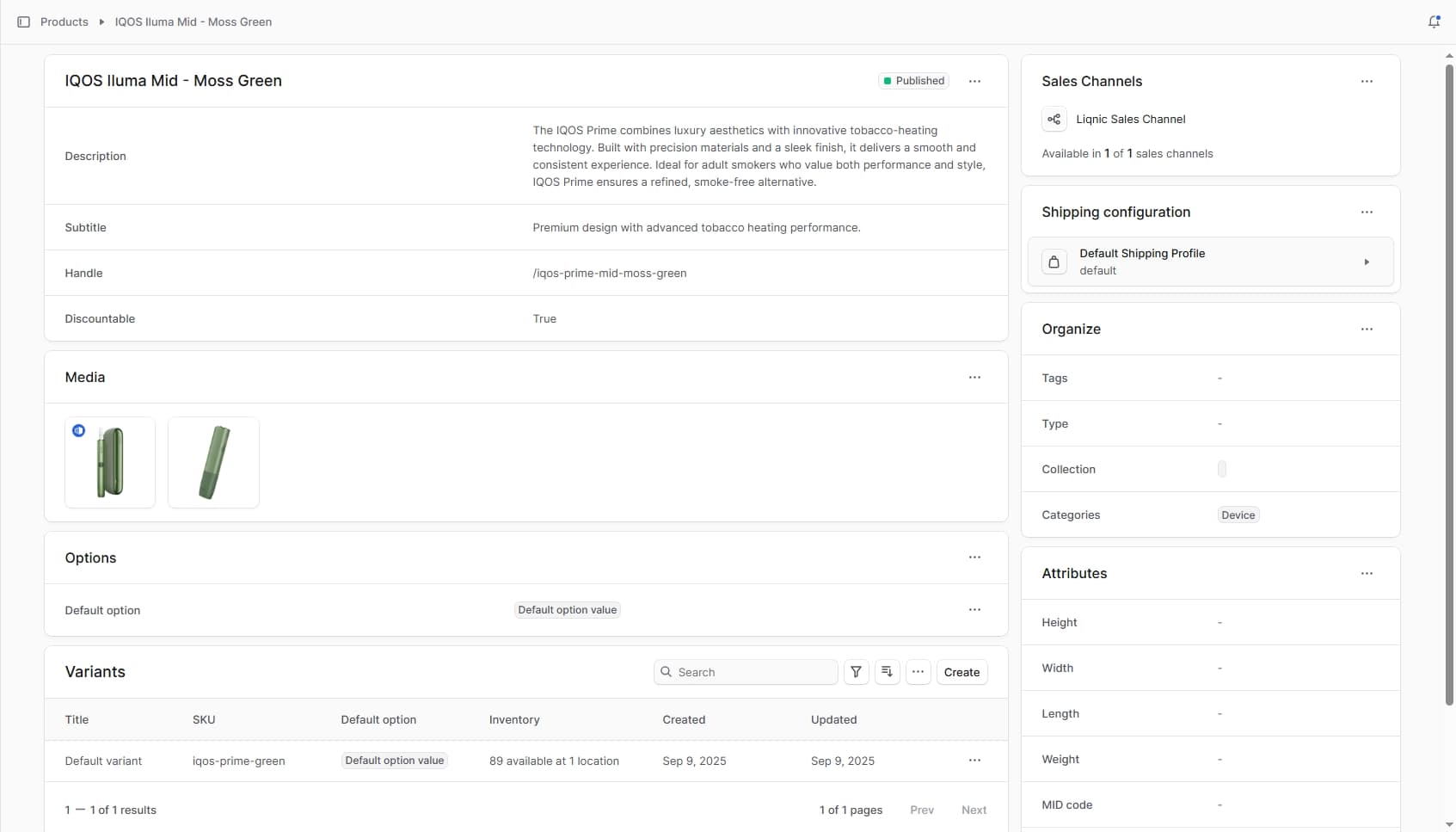
Open Product’s Details
To open a product’s details:
- Go to the Products page from the sidebar.
- Select one of the products to open its details page.
Manage General Product Details
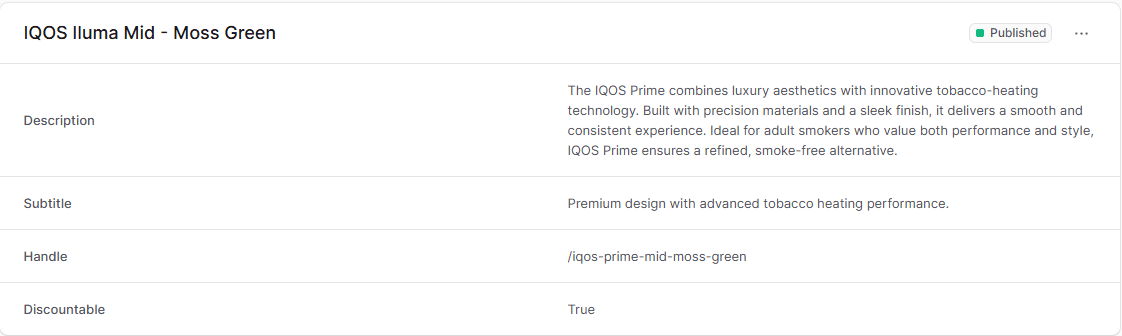
The first section, which has the product’s title as a header, includes the product’s general information and options. Use this section to view and edit the product’s details.
Product Statuses
In the first section’s header, you can see the product’s status. A product can have one of the following statuses:
| Status | Description |
|---|---|
| Published | The product is available on the storefront and can be purchased. |
| Draft | A product whose details you’re still working on. It’s not available on the storefront. |
| Proposed | A product that is not yet approved for publishing. It’s not available on the storefront. |
| Rejected | A product that has been rejected and is not available on the storefront. |
Edit Product Details
To edit the product’s general details:
- Click on the ··· icon in the section’s header.
- Choose “Edit” from the dropdown.
- In the side window that opens, you can edit the product’s status, title, subtitle, handle, material, description, and whether it’s discountable.
- Once you’re done, click the “Save” button.
Delete Product
Warning: Deleting a product is irreversible.
To delete the product:
- Click on the ··· icon in the section’s header.
- Choose “Delete” from the dropdown.
- Confirm deleting the product by clicking the “Delete” button in the pop-up.
Manage Product Media
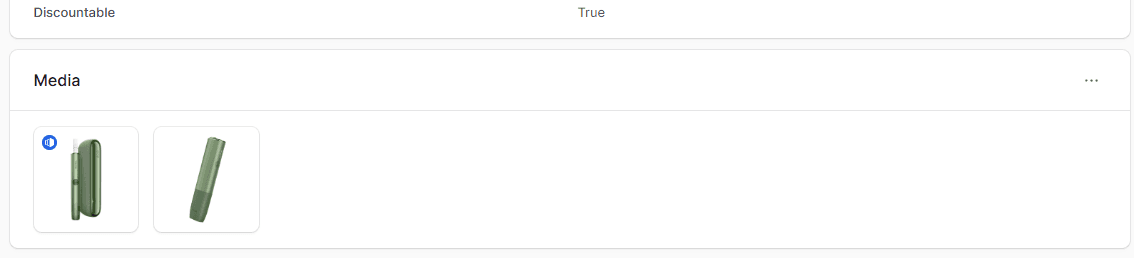
The Media section includes the product’s images. Use this section to view and edit the product’s images.
Add Images
To add images to the product:
- Click on the ··· icon in the “Media” section’s header.
- Choose “Edit” from the dropdown.
- In the form that opens, upload images either by dragging and dropping them or by clicking the “Upload images” box.
- Once you’re done, click the “Save” button.
Edit Images Order
To change the order of images:
- Click on the ··· icon in the “Media” section’s header.
- Choose “Edit” from the dropdown.
- In the form that opens, drag and drop images to change their order.
- Once you’re done, click the “Save” button.
Set Thumbnail Image
To set an image as the thumbnail:
- Click on the ··· icon in the “Media” section’s header.
- Choose “Edit” from the dropdown.
- Hover over the image you want to make as a thumbnail, then click on its checkbox.
- Press T or click the “Make thumbnail” button at the bottom of the page.
- Once you’re done, click the “Save” button.
Delete Images
To delete product images:
- Hover over the product images you want to delete and click their checkbox.
- Press D or click the “Delete” button at the bottom of the page.
- Confirm deleting the images by clicking the “Delete” button in the pop-up.
Manage Product Options
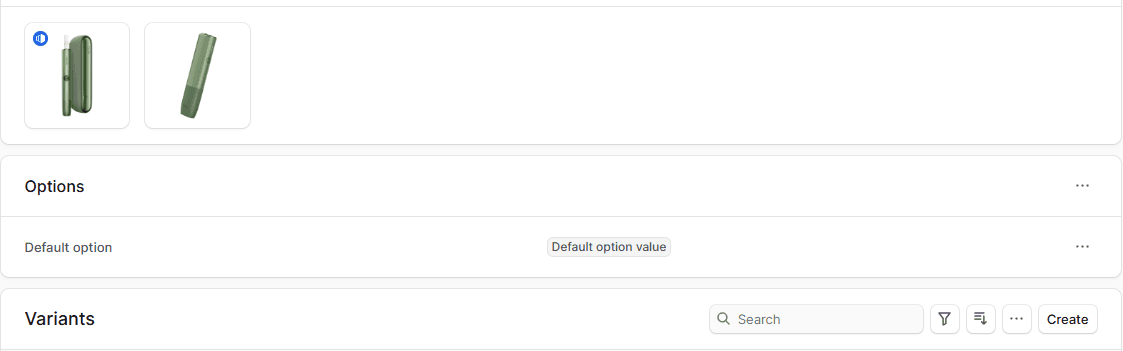
The Options section includes the product’s options. Use this section to view and edit the product’s options.
Create Options
Note: Unlike the product-creation form, when you create an option for an existing product you must create the variants manually.
To add a new option to the product:
- Click on the ··· icon in the “Options” section’s header.
- Choose “Create” from the dropdown.
- In the side window that opens:
- In the Option title field, enter the option’s title, such as “Color”.
- In the Values field, enter the option’s values, such as “Red, Blue, Green”. Values are separated by a comma.
- Once you’re done, click the “Save” button.
Edit Option
To edit an option:
- Click on the ··· icon in its row.
- Choose “Edit” from the dropdown.
- In the side window that opens, you can edit the option’s title and values.
- Once you’re done, click the “Save” button.
Delete Option
Warning: Deleting an option is irreversible.
To delete an option:
- Click on the ··· icon in its row.
- Choose “Delete” from the dropdown.
- Confirm deleting the option by clicking the “Delete” button in the pop-up.
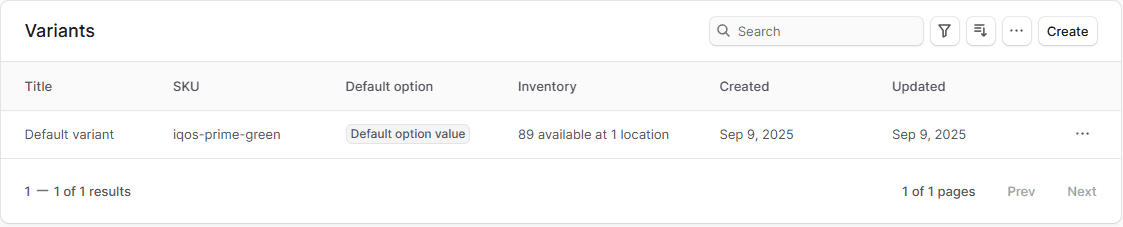
Variants Section
The Variants section includes the product’s variants. You can view, search, and filter variants. You can also edit a variant’s information, or click on it to edit more of its details.
Refer to this guide to learn about managing product variants.
Manage Product Metadata
Metadata is custom data that can be associated with the product in key-value pairs. This is usually used by developers for custom integrations or to store additional information about the product.
To edit the product’s metadata:
- Click the icon in the “Metadata” section.
- In the side window that opens:
- Manage the key-value pairs in the table.
- To add a new row of key-value pairs before or after a row: Hover over the row and click the icon at its end. Choose “Insert row above” or “Insert row below” from the dropdown.
- To delete a row of key-value pairs: Hover over the row and click the icon at its end. Choose “Delete row” from the dropdown.
- Once you’re done, click the “Save” button.
Manage Product’s Sales Channels
The Sales Channels section includes the sales channels the product is available in. Use this section to view and edit the product’s sales channels.
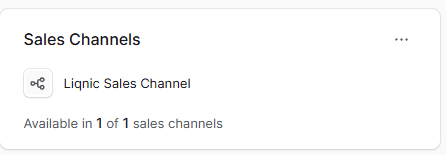
To manage the sales channels a product is available in:
Warning: Removing a product from a sales channel will make it unavailable for purchase in that sales channel.
- Click the icon in the “Sales Channels” section’s header.
- Choose “Edit” from the dropdown.
- In the list that shows, check the sales channels you want to add the product to, or uncheck the ones you want to remove the product from.
- Once you’re done, click the “Save” button.
Manage Product’s Shipping Configuration
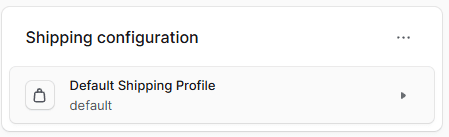
The Shipping Configuration section includes the product’s shipping profile. Use this section to view and edit the product’s shipping profile.
Edit Product’s Shipping Profile
To edit the product’s shipping profile:
- Click the icon in the “Shipping Configuration” section’s header.
- Choose “Edit” from the dropdown.
- In the side window that opens, choose the shipping profile from the dropdown.
- Once you’re done, click the “Save” button.
Manage Product Organization
The Organize section includes the product’s organization details. Use this section to view and edit the product’s organization details, such as categories and collections.
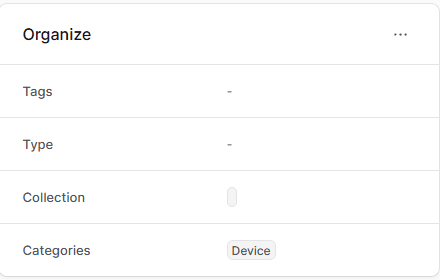
To edit the product’s organization details:
- Click the icon in the “Organize” section’s header.
- Choose “Edit” from the dropdown.
- In the side window that opens, you can set the product’s type, collection, categories, and tags.
- Once you’re done, click the “Save” button.
Manage Product Attributes
The Attributes section includes the product’s attributes, such as height and weight. Use this section to view and edit the product’s attributes.
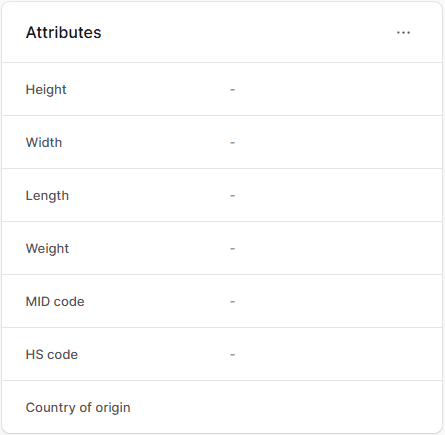
To edit the product’s attributes:
- Click the icon in the “Attributes” section’s header.
- Choose “Edit” from the dropdown.
- In the side window that opens, you can set the product’s width, height, length, weight, MID code, HS code, and country of origin.
- Once you’re done, click the “Save” button.
JSON Section
The JSON section is useful for developers to view the raw product data in JSON structure. Developers can use this section to debug and troubleshoot issues related to the product.
To view the JSON structure, Click on the ··· icon.