Manage Reservations in Liqnic Admin
In this guide, you’ll learn how to manage reservations in your store.
What is a Reservation?
A reservation is a reserved quantity of an inventory item. Liqnic automatically creates reservations for inventory items whose variants are purchased. This ensures that the inventory item is not sold to another customer while the order is being processed. Once the item in the order is fulfilled, the reservation is removed.
You can also manually create reservations for inventory items. For example, you can reserve a quantity of an inventory item for an offline sale or a customer who has requested a reservation.
View Reservations
To view reservations:
- Go to Inventory from the sidebar.
- Click the Reservations sub-item shown in the sidebar.
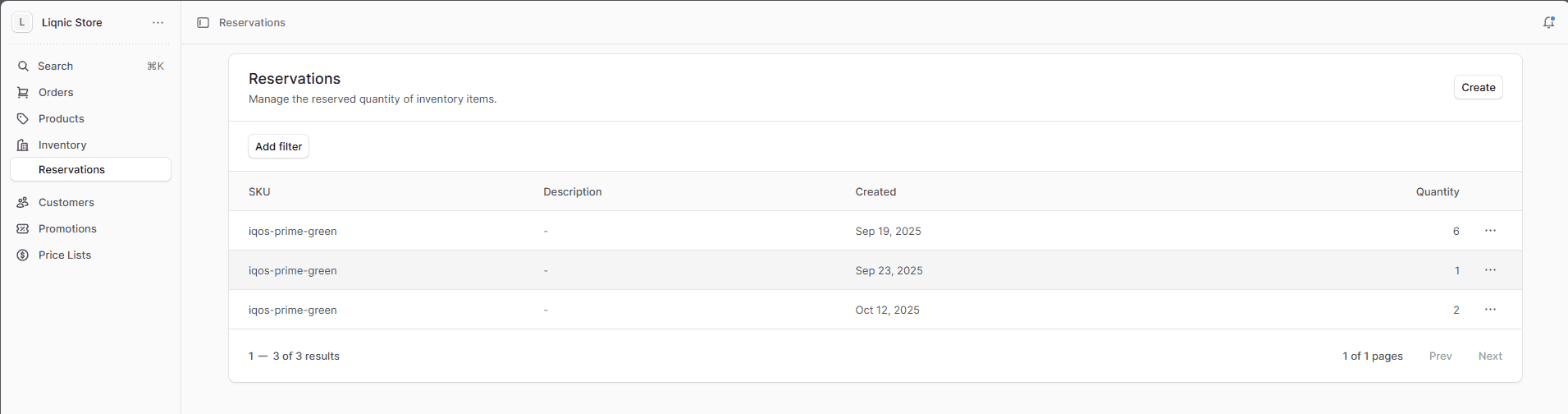
In the list, you can see reservation details such as the SKU and reserved quantity. You can also search, filter, and sort the reservations to find a specific item.
Create a Reservation
To create a reservation manually:
- Go to Inventory → Reservations.
- Click the Create button in the main section’s header.
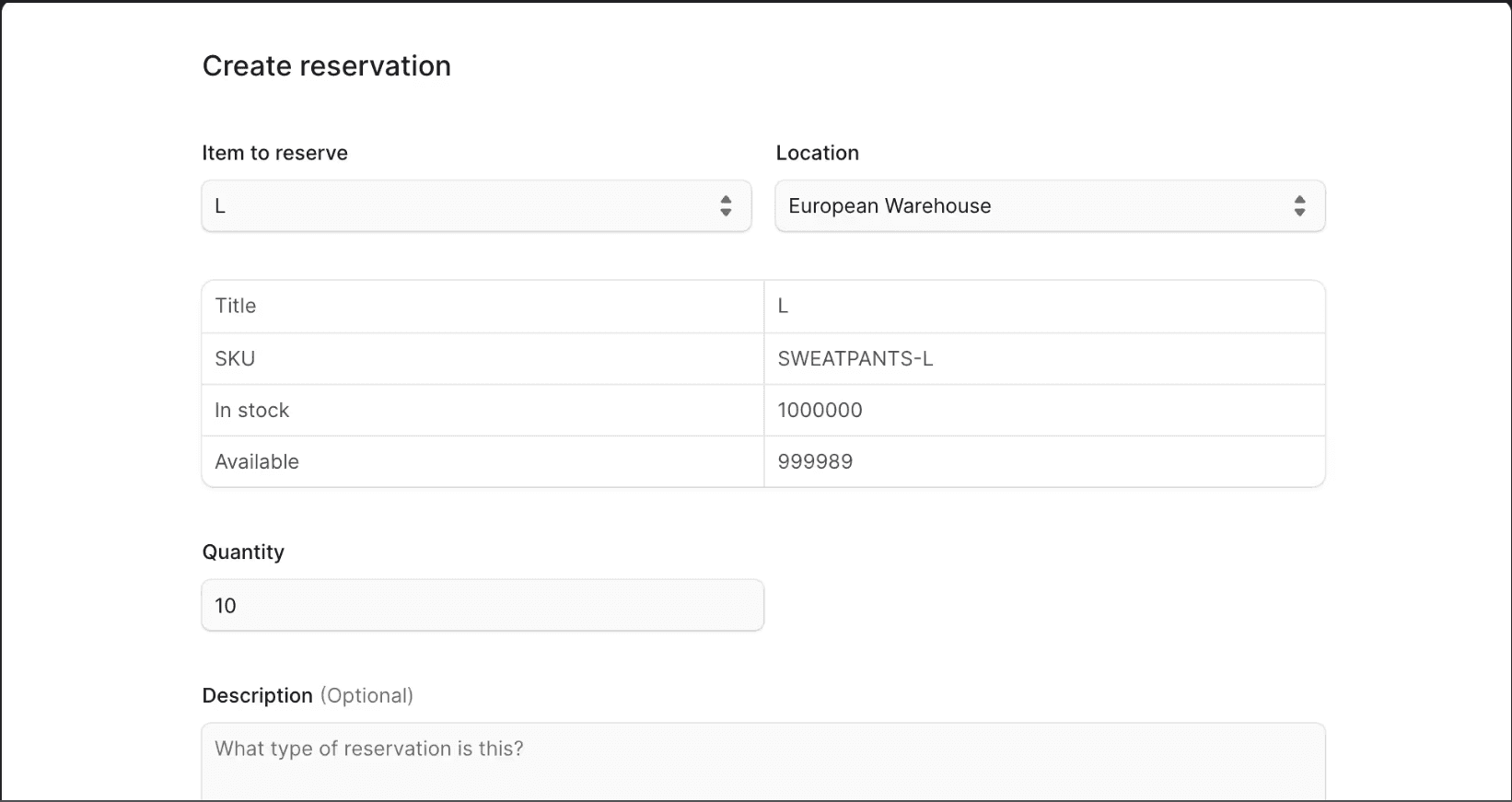
- In the form that opens:
- For the “Item to reserve” field, enter or choose the SKU of the item.
- For the “Location” field, select the location where the reservation is created.
- Set the reserved quantity in the “Quantity” field. The table above shows available quantities, which update as you enter the quantity.
- Optionally, add a description in the Description field.
- Click the Create button.
View Reservation Details
To view a reservation’s details:
- Go to Inventory → Reservations.
- Click on the reservation you want to view.
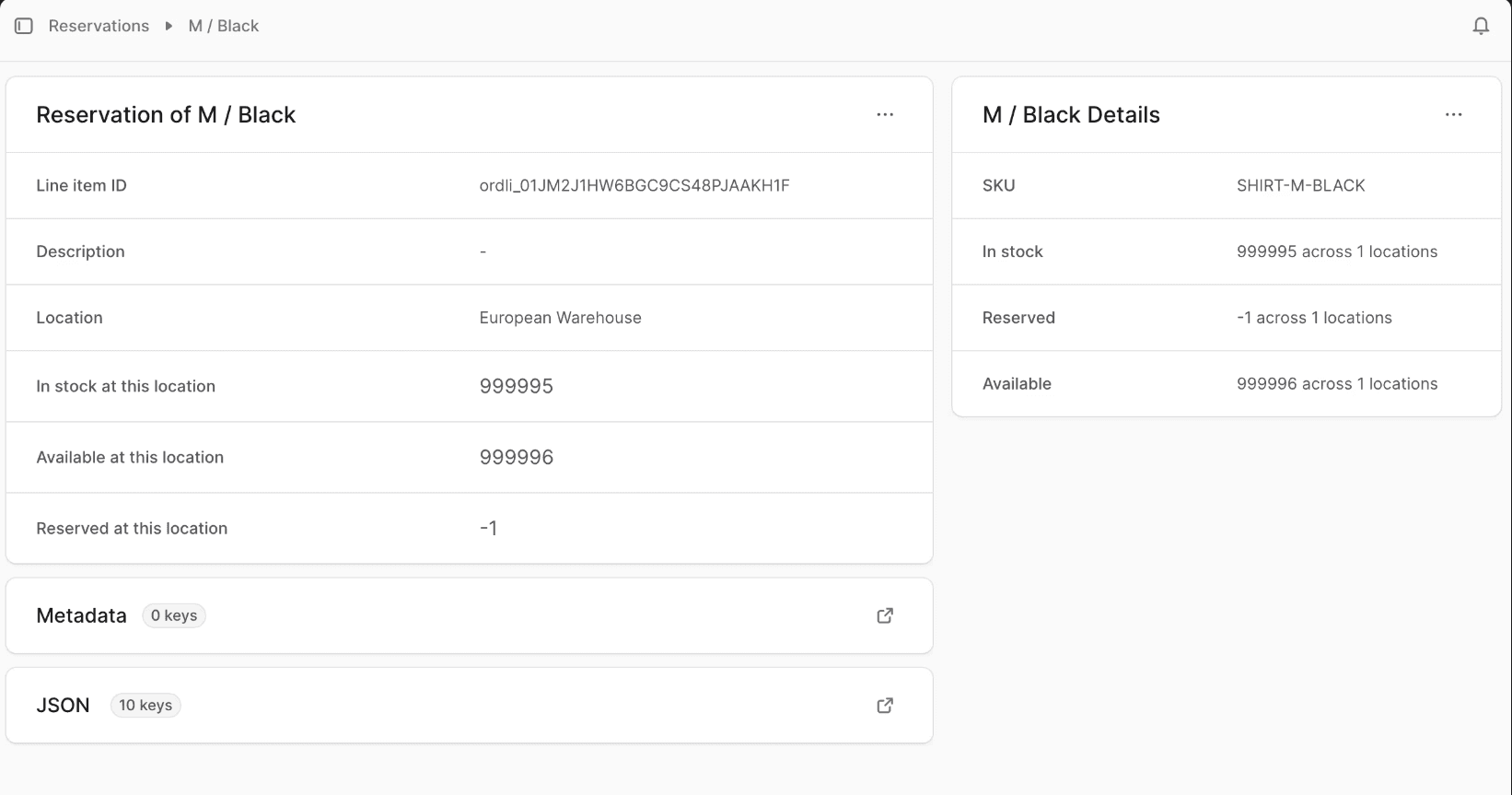
- This opens the reservation’s details page.
Edit Reservation
To edit a reservation:
- Go to Inventory → Reservations.
- Find the reservation and click the icon in its row.
- Choose Edit from the dropdown.
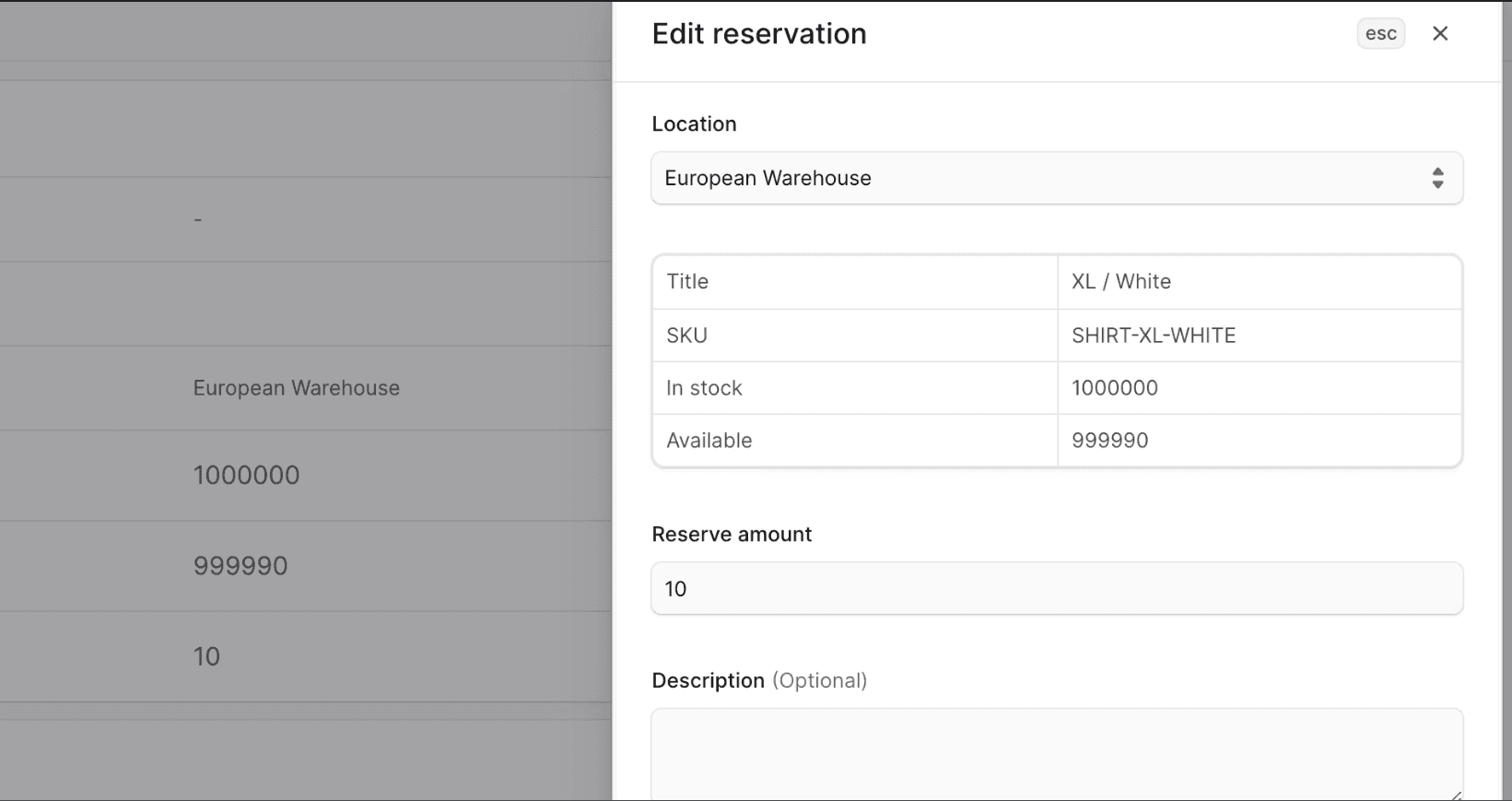
- In the side window, edit the reservation’s location, reserved quantity, and description.
- Click the Save button.
Edit Reservation Metadata
Metadata is custom key-value data associated with a reservation.
To edit:
- Go to the reservation’s details page.
- Click the icon in the “Metadata” section.
- In the side window:
- To add a new row, hover over a row and click the icon, then choose “Insert row above” or “Insert row below”.
- To delete a row, click the icon at its end and choose “Delete row”.
- Click the Save button.
Delete Reservation
Warning: Deleting a reservation is irreversible. If the reservation was created for an order, you may need to allocate the item again.
To delete a reservation:
- Go to Inventory → Reservations.
- Find the reservation and click the icon in its row.
- Choose Delete from the dropdown.
- Confirm by clicking the Delete button in the pop-up.