Manage Customers in Liqnic Admin
In this guide, you’ll learn how to create and manage customers and their details.
Create a Customer
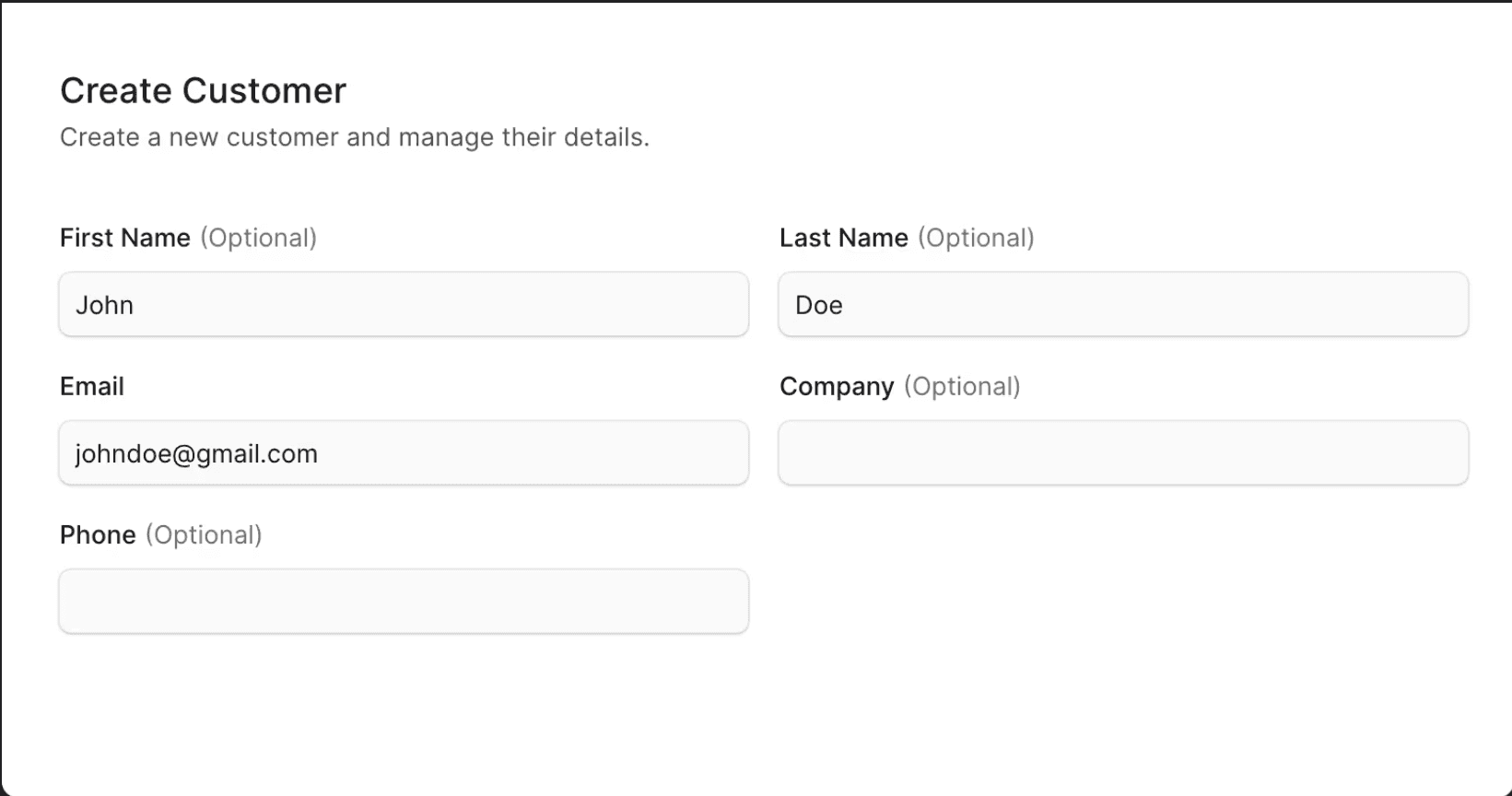
You can create a customer through the Liqnic Admin, which is useful if a customer is creating an order offline. The customer will be a guest customer; to register, the customer must register through the storefront.
To create a customer from the Liqnic Admin:
- Go to the Customers page.
- Click the Create button in the main section’s header.
- In the form that opens, enter the customer’s email, and optionally their first and last name, company name, and phone number.
- Once you’re done, click the Create button.
View Customer Details
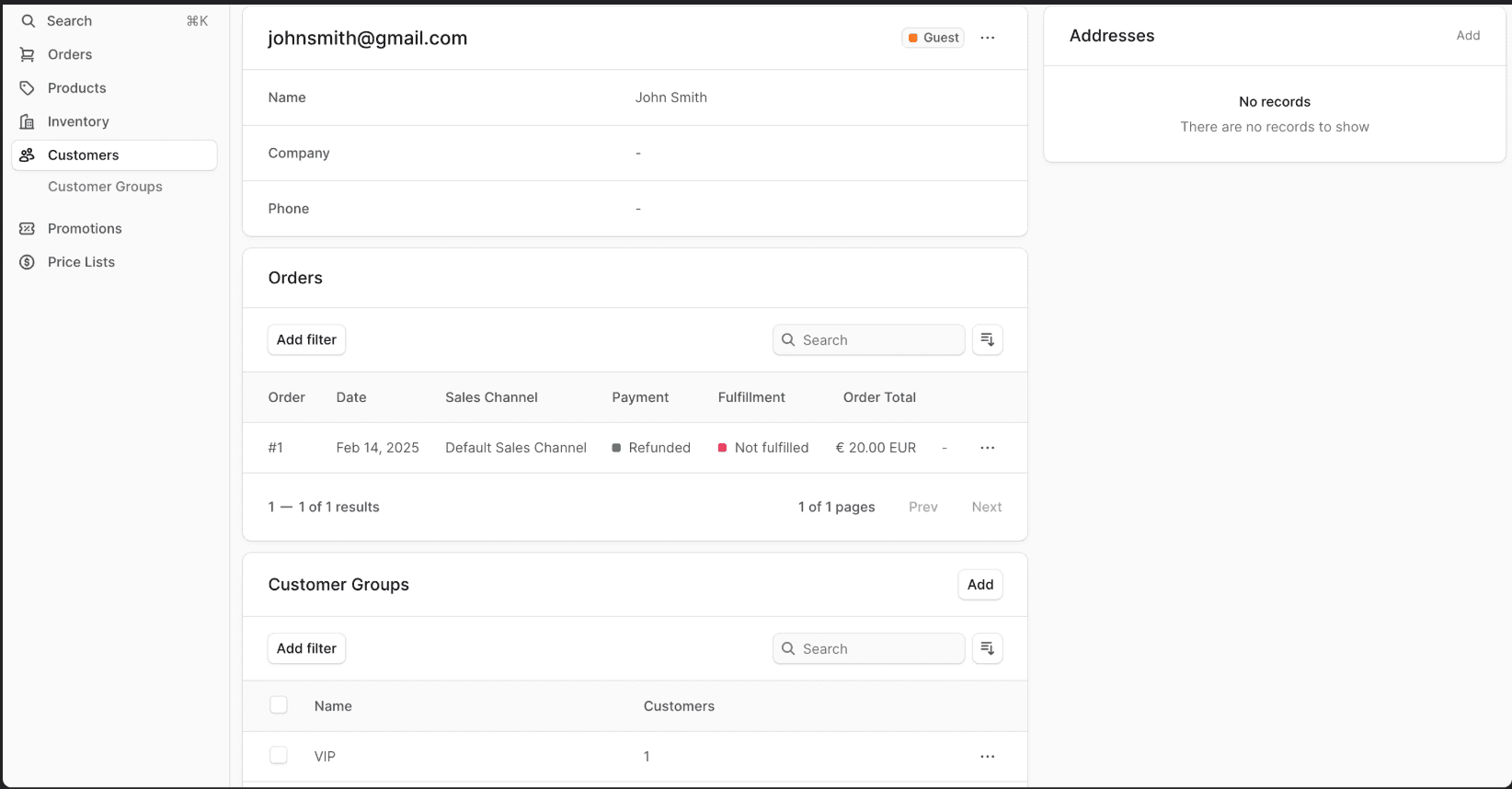
To view a customer’s details:
- Go to the Customers page.
- Click on the customer you want to view.
Customer Type
In the first section’s header, you can see a badge with the customer’s type:
| Customer Type | Description |
|---|---|
| Registered | A customer that has registered in your store. |
| Guest | A customer that has placed an order but hasn’t registered in your store, or a customer that you created through the admin dashboard. |
Edit Customer Details
Note: You can’t edit a customer’s password from the Liqnic Admin. The customer has to reset it from the storefront.
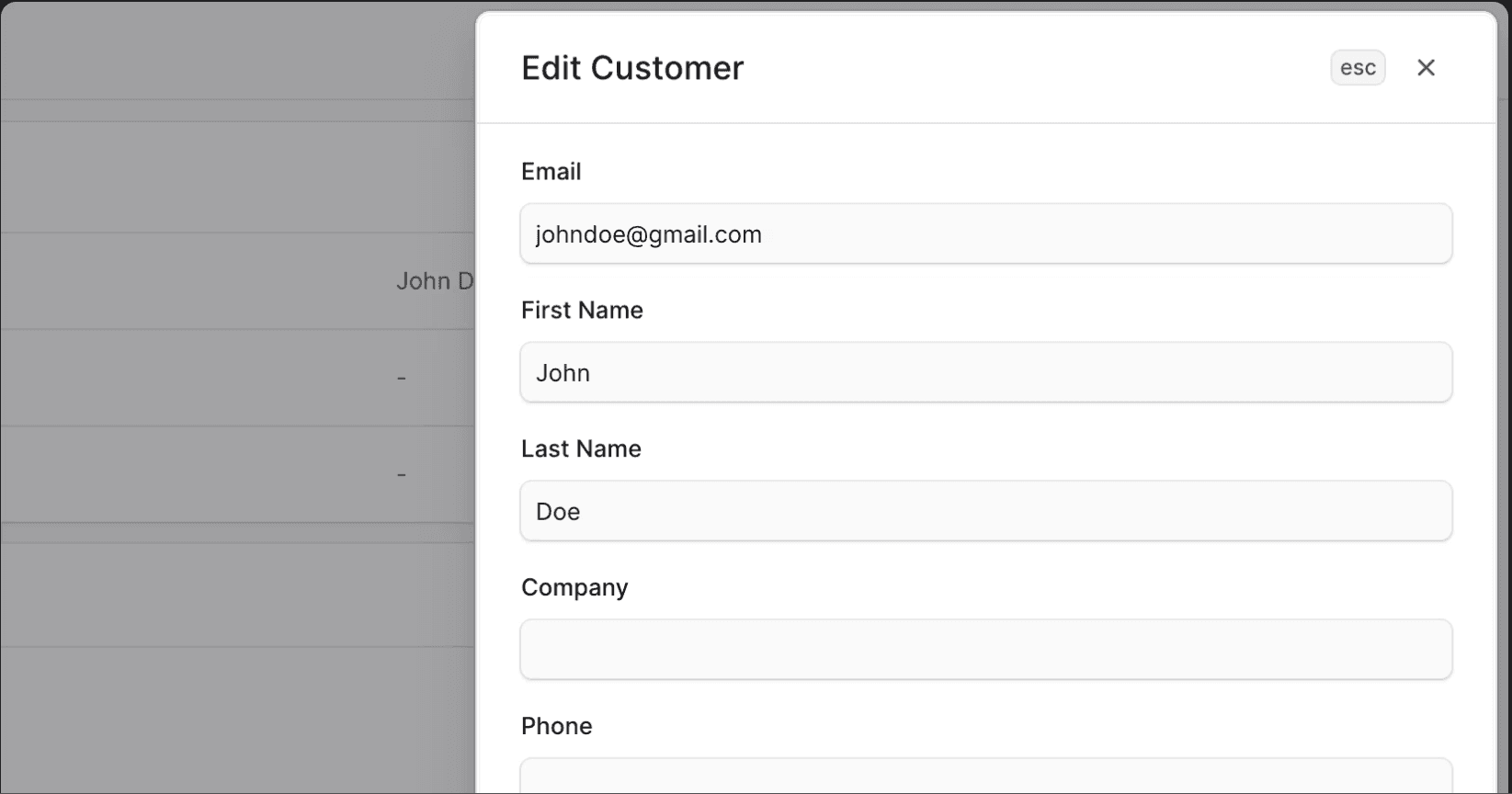
To edit a customer’s details:
- Go to a customer’s details page.
- Click on the ··· icon in the first section.
- Choose Edit from the dropdown.
- In the side window that opens, you can edit the customer’s email, first and last name, company name, and phone number.
- Once you’re done, click the Save button.
View Customer Orders
You can view a customer’s orders from their details page in the Orders section. By clicking on an order, you can view its details.
Transfer Order to Another Customer
You can transfer an order to another customer. For example, a guest customer registered, or a customer created an order offline.
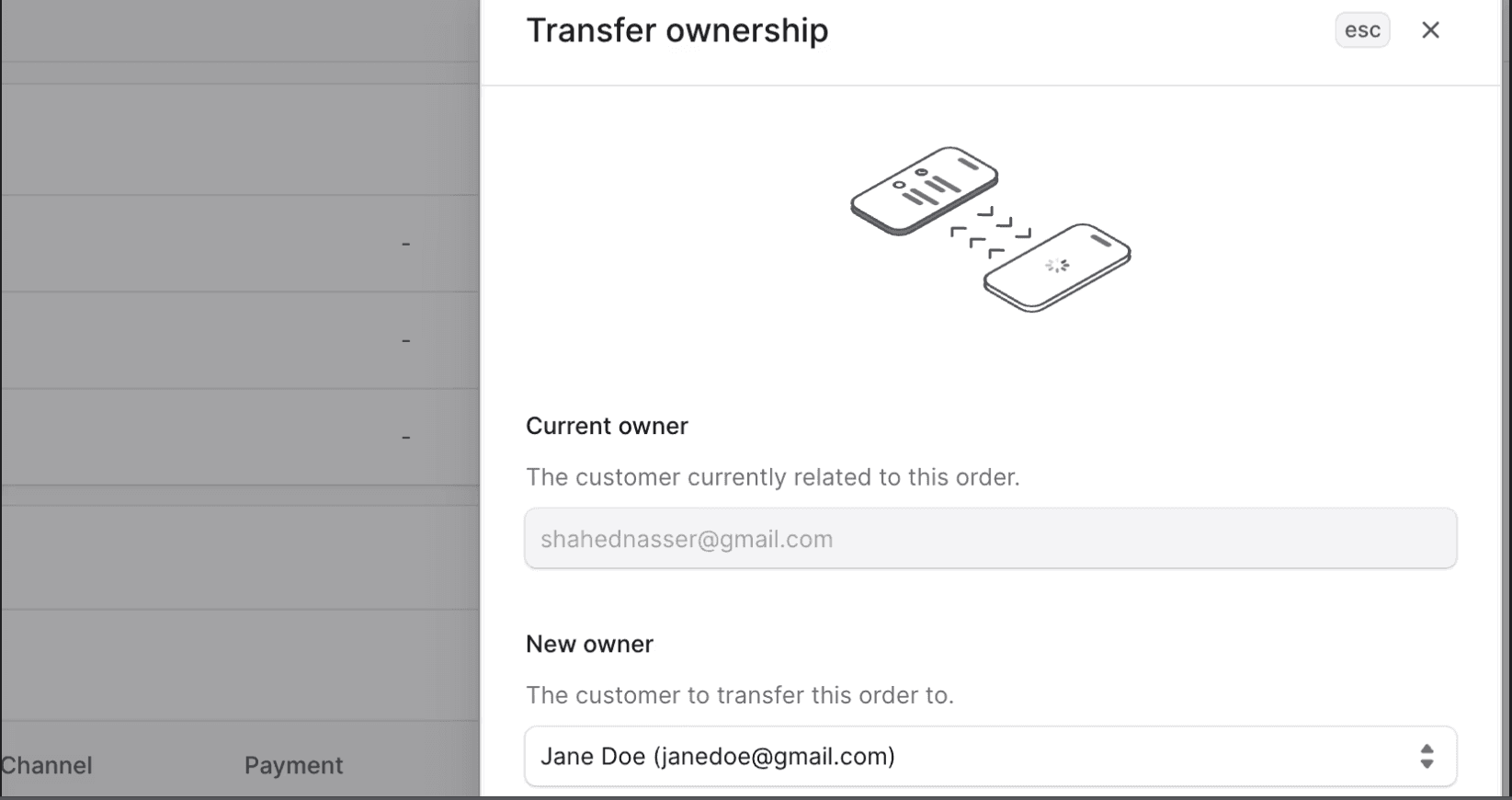
When you transfer the ownership of an order, the original customer will receive a notification, such as an email, requesting their approval for the transfer. The order is transferred to the new customer only after the original customer approves the transfer.
Note: You can’t transfer ownership to a guest customer, and that includes customers you create through the admin dashboard.
To transfer a customer’s order ownership to another:
- Go to the customer’s details page.
- In the Orders section, Click on the ··· icon in the order’s row.
- Choose Transfer ownership from the dropdown.
- In the side window that opens, choose the customer to transfer the order to in the “New owner” field.
- Once you’re done, click the Save button.
The original customer will then receive a notification requesting their approval for the transfer.
Note: If a notification isn’t sent, check with your technical team to debug the integrated notification service.
Manage Customer’s Groups
You can add a customer to multiple groups, allowing you to offer different promotions or pricing based on the group they belong to.
Add Customer to Groups
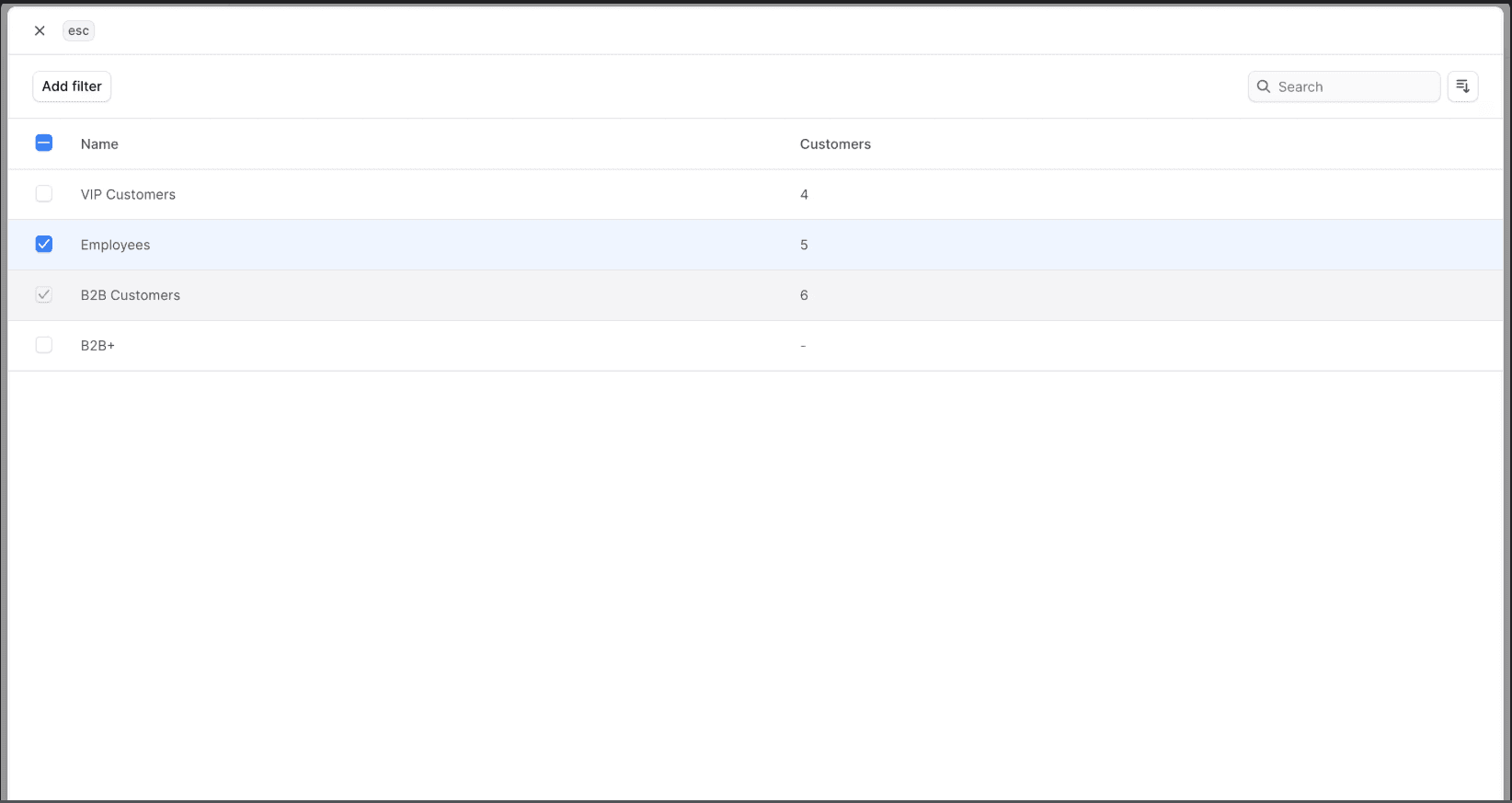
To add a customer to customer groups:
- Go to the customer’s details page.
- In the “Customer Groups” section, click on the “Add” button.
- In the list that opens, check the groups you want to add the customer to.
- Once you’re done, click the Save button.
Remove Customer from Groups
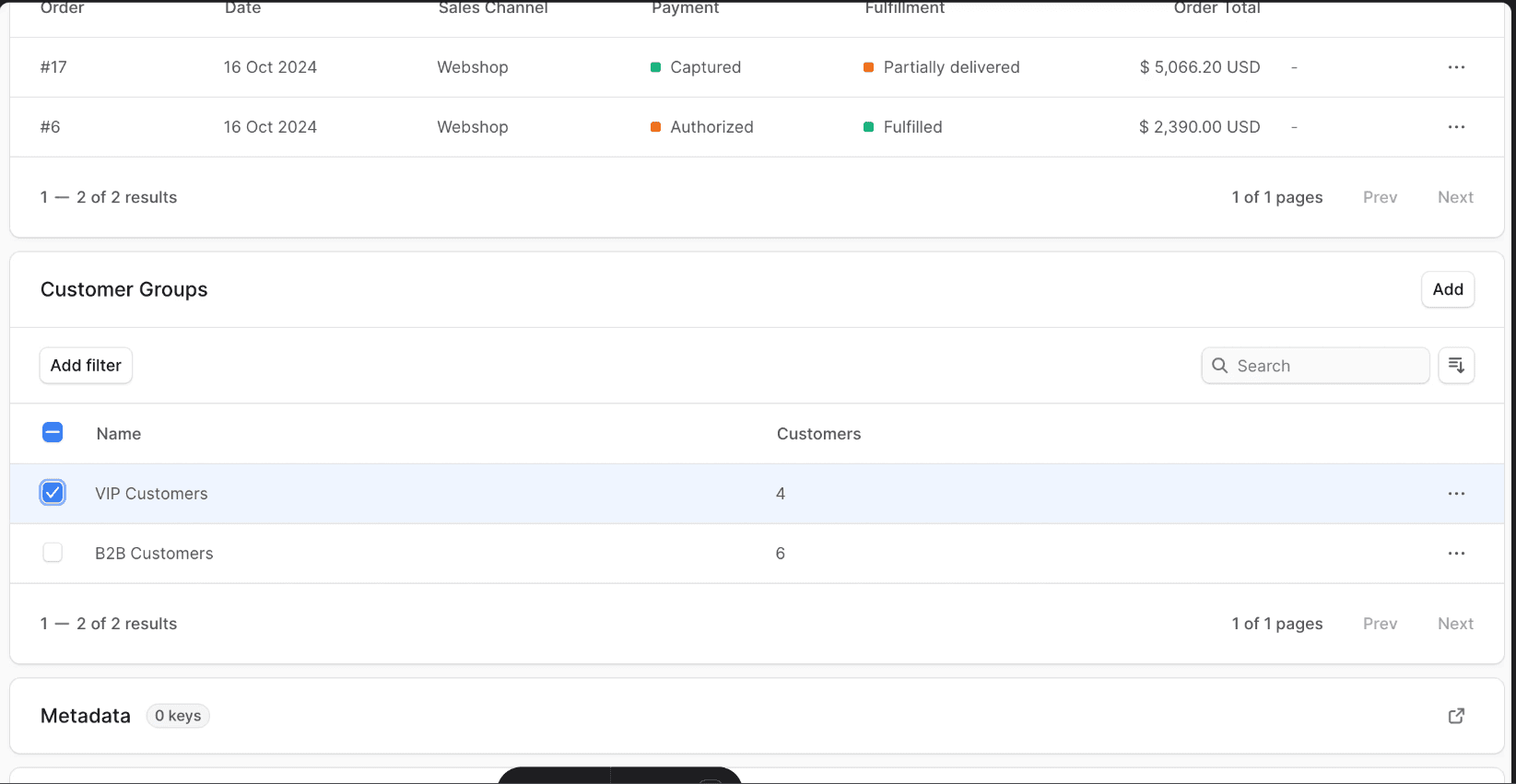
To remove a customer from customer groups:
- Go to the customer’s details page.
- In the “Customer Groups” section, check the groups you want to remove the customer from.
- Once you’re done, either press R or click “Remove” at the bottom center of the page.
- Confirm removing the groups by clicking the “Remove” button in the pop-up.
Edit Customer Metadata
Metadata is custom data that can be associated with the customer in key-value pairs. This is usually used by developers for custom integrations or to store additional information about the customer.
To edit the customer’s metadata:
- Go to the customer’s details page.
- Click the icon in the “Metadata” section.
- In the side window that opens:
- Manage the key-value pairs in the table.
- To add a new row of key-value pairs before or after a row:
- Hover over the row and click the icon at its end.
- Choose “Insert row above” or “Insert row below” from the dropdown.
- To delete a row of key-value pairs:
- Hover over the row and click the icon at its end.
- Choose “Delete row” from the dropdown.
- Once you’re done, click the Save button.
Manage Customer’s Addresses
You can view and manage a customer’s address from the “Addresses” section on the customer’s details page. This is useful when you need to make changes to the customer’s shipping or billing address in an order.
Add Customer Address
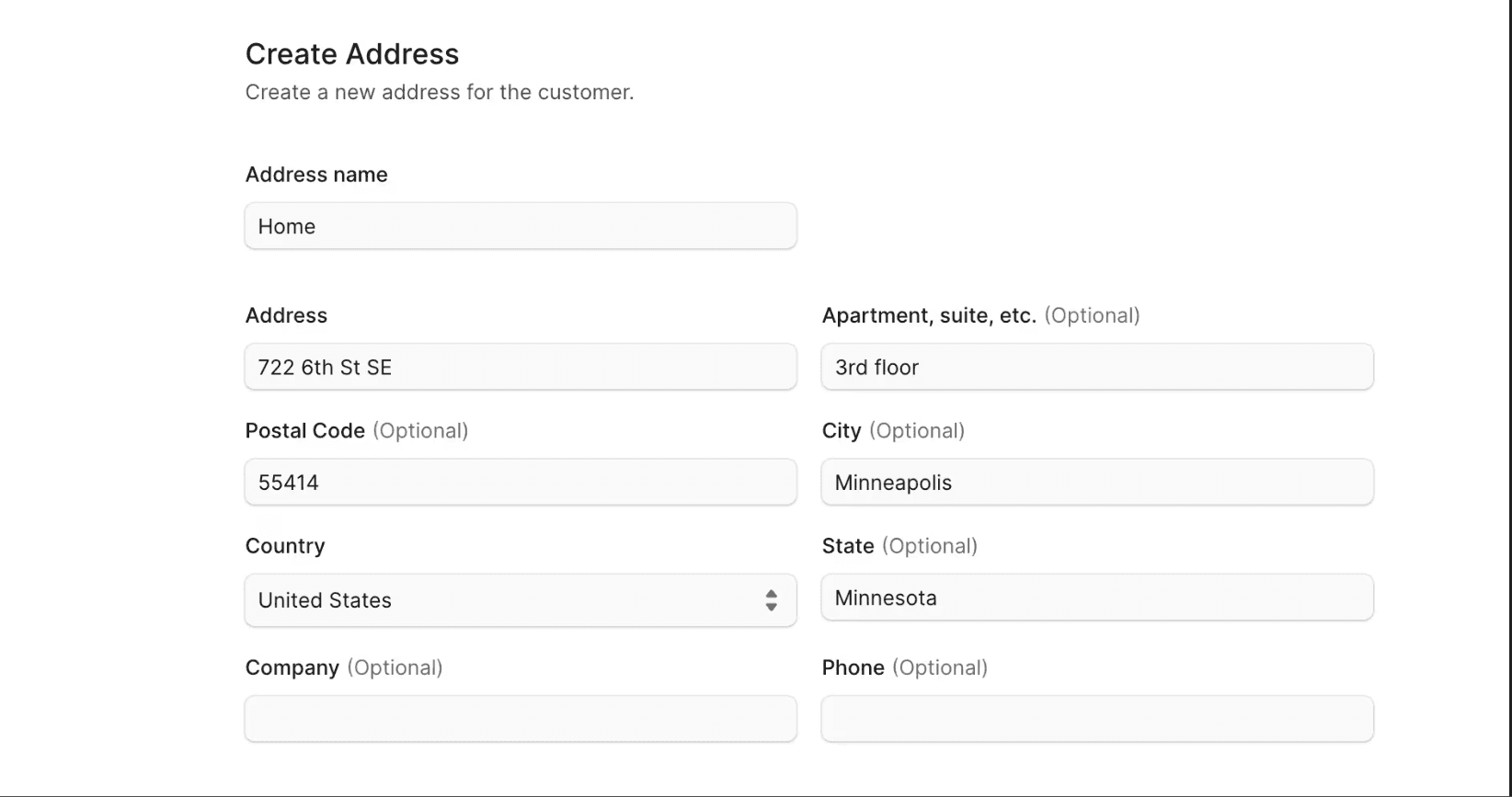
To add an address to a customer:
- Go to the customer’s details page.
- Click on the “Add” button in the “Addresses” section’s header.
- In the form that opens, enter the address details including name, address line, apartment, postal code, city, country, state, company, and phone number.
- Once you’re done, click the Save button.
Delete Customer Address
Warning: Deleting an address is irreversible.
To delete a customer address:
- Go to the customer’s details page.
- Find the address in the “Addresses” section.
- Click on the ··· icon in its row.
- Choose Delete from the dropdown.
- In the pop-up, enter the address name and click the “Delete” button.
Delete a Customer
Warning: Deleting a customer is irreversible.
To delete a customer:
- Go to the customer’s details page.
- Click on the ··· icon in the first section’s header.
- Choose Delete from the dropdown.
- In the pop-up, enter the customer’s email and click the “Delete” button.