Manage Draft Order Details in Liqnic Admin
In this guide, you’ll learn how to manage draft order details in the Liqnic Admin.
Prerequisite: If you’re using a version earlier than v2.10.0, you must install the Draft Orders Plugin manually. Your technical team should handle the plugin installation.
View Draft Order Details
To view the details of a draft order:
- Go to Orders -> Drafts.
- Click on the draft order you want to view.
This will open the draft order’s details page, which is divided into several sections.
Summary Section
The Summary section includes a summary of the items the customer purchased, as well as totals related to taxes, shipping, and more. Use this section to get a quick overview of the draft order, convert it to a regular order, or manage its items.
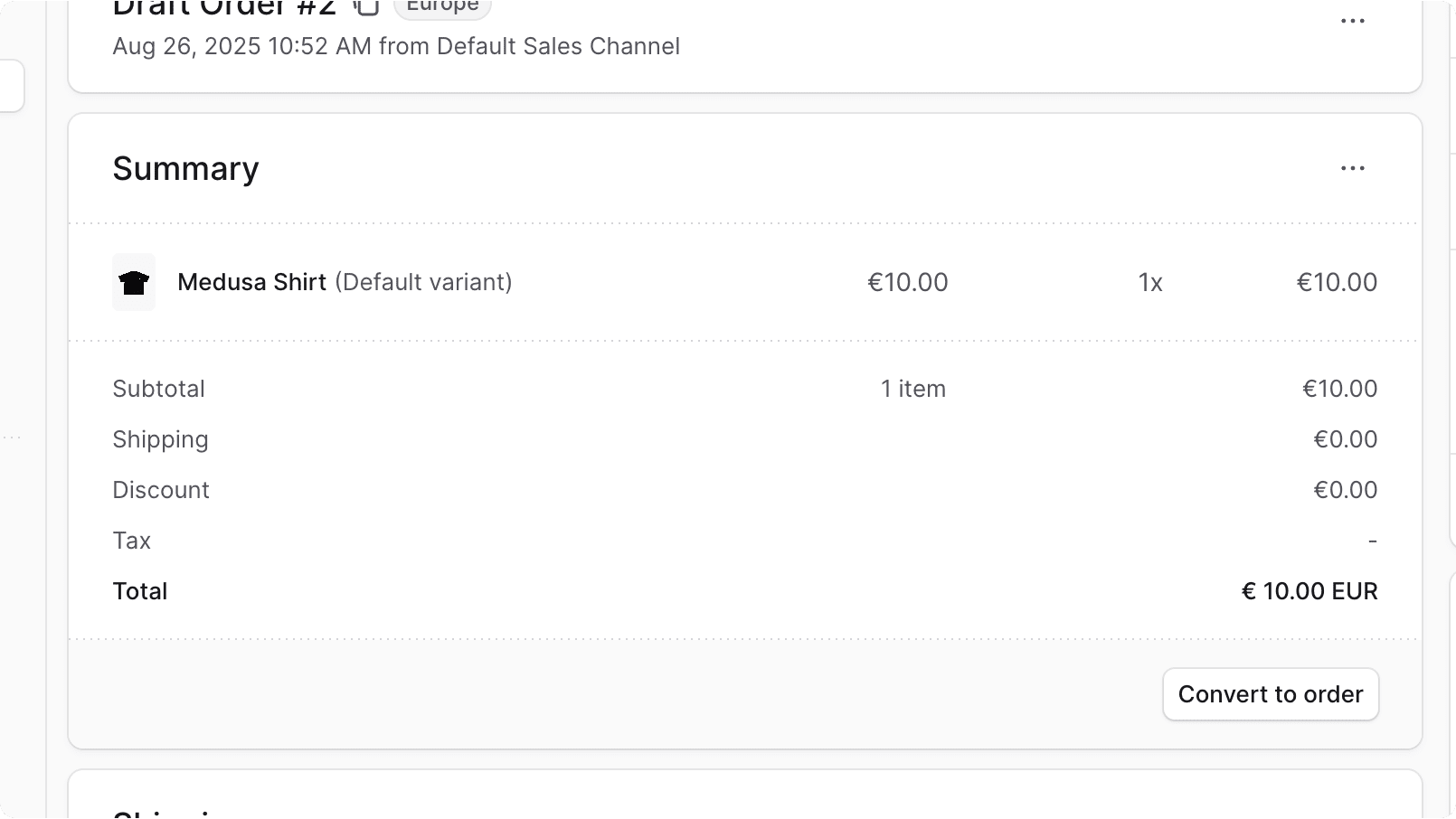
Order Summary
Customer Section
The Customer section shows the customer’s details, including their contact information and shipping address. Use this section to view and edit the customer’s details pertaining to the order.

Activity Section
The Activity section of the draft order details page shows a summary of the changes made to the draft order. That includes updates to items and shipping methods.

Shipping Section
The Shipping section shows the draft order’s shipping details, including the shipping methods chosen for each shipping profile associated with the draft order’s items. Use this section to view and manage the shipping methods for the draft order.

Metadata Section
The Metadata section allows you to view and manage custom metadata associated with the draft order. Metadata can be useful for storing additional information about the order that is not covered by the default fields.
JSON Section
The JSON section is useful for developers to view the raw order data in JSON format. Developers can use this section to debug and troubleshoot issues related to the order.
To view the JSON structure, click the icon.
Edit Draft Order’s Sales Channel
To edit the sales channel of a draft order:
- Go to the draft order’s details page.
- In the first section displaying the order’s number and region, click the icon in the draft order’s row.
- Select “Edit sales channel” from the dropdown menu.
- In the side window that opens, select the new sales channel from the dropdown.
- Click the Save button.

Manage Draft Order’s Items
To add, edit, or remove items from a draft order:
- Go to the draft order’s details page.
- Click on the icon in the Summary section’s header.
- Select “Edit items” from the dropdown menu.
- In the form that opens:
- To add an item, click the button in the “Items” section’s header. From the dropdown, choose one of:
- Add items: Add existing product variants to the draft order.
- Add custom item: Add a custom item that’s only available in this draft order.
- To edit an existing item, click the button in the item’s row to change quantity or price.
- To remove an item, click the button and set the quantity to zero.
- To add an item, click the button in the “Items” section’s header. From the dropdown, choose one of:
- Click Save when done.
The items in the Summary section will be updated accordingly.

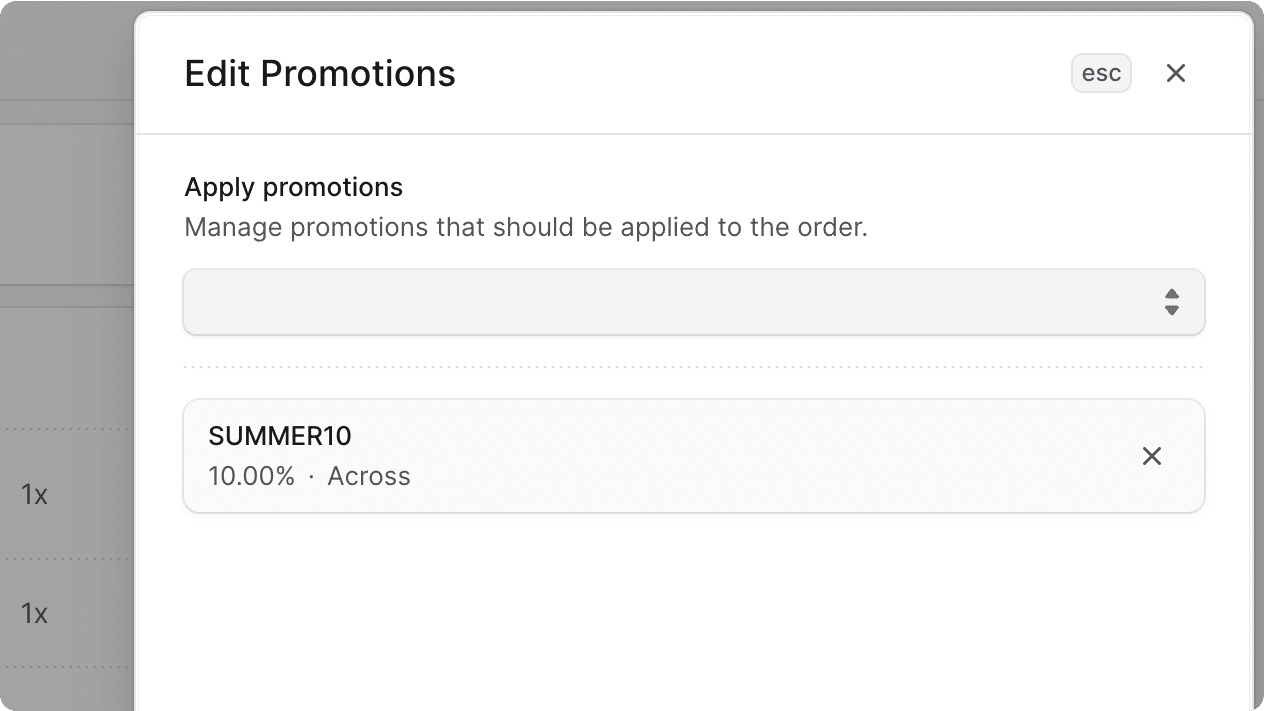
Manage Draft Order’s Promotions
To add or remove promotions applied to the draft order:
- Go to the draft order’s details page.
- Click on the icon in the Summary section’s header.
- Select “Edit promotions” from the dropdown menu.
- In the side window that opens:
- To add a promotion, choose it from the dropdown menu.
- To remove a promotion, click the icon next to the promotion.
- Click Save when done.
Manage Draft Order’s Shipping Methods
To manage the shipping methods of a draft order:
- Go to the draft order’s details page.
- In the Shipping section, click Add shipping or Edit shipping.
- In the form that opens:
- Add shipping option: Choose location, shipping option, and (optionally) set a custom amount.
- Edit shipping option: Click the icon to update location or price.
- Remove shipping option: Click the icon and select Remove.
- Click Save when done.

Manage Draft Order’s Customer Details
Transfer Draft Order to Another Customer
To transfer the draft order to another customer:
- Go to the draft order’s details page.
- Click the icon in the Customer section’s header.
- Choose “Transfer ownership”.
- Select the new customer in the “New customer” field.
- Click Save.

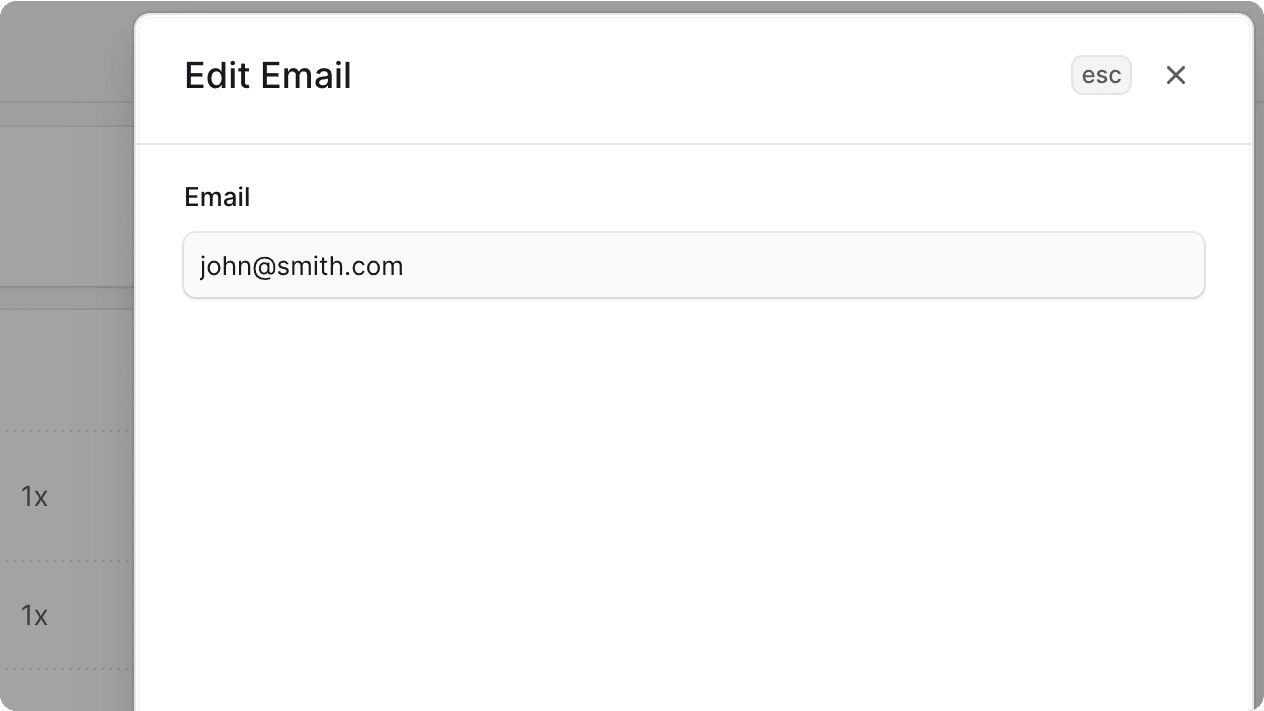
Edit Email
To edit the email address associated with a draft order:
- Go to the draft order’s details page.
- Click the icon in the Customer section’s header.
- Choose “Edit email”.
- Enter the new email and click Save.
Edit Draft Order’s Shipping Address
To edit the shipping address used for a draft order:
- Go to the draft order’s details page.
- Click the icon in the Customer section’s header.
- Choose “Edit shipping address”.
- Update the address details and click Save.

Edit Draft Order’s Billing Address
To edit the billing address used for a draft order:
- Go to the draft order’s details page.
- Click the icon in the Customer section’s header.
- Choose “Edit billing address”.
- Update the billing details and click Save.
Manage Draft Order’s Metadata
Metadata is custom data that can be associated with the draft order in key-value pairs.
To edit the draft order’s metadata:
- Click the icon in the Metadata section.
- Manage the key-value pairs:
- Add or delete rows as needed.
- Click Save when done.
Convert Draft Order to Regular Order
Important: This action can’t be undone.
To convert a draft order to a regular order:
- Go to the draft order’s details page.
- In the Summary section, click Convert to order.
- Confirm by clicking Confirm.
You’ll be redirected to the order’s details page. Learn more in the Manage Orders guide.
Delete Draft Order
⚠️ Warning: Deleting a draft order is irreversible.
To delete a draft order:
- Go to the draft order’s details page.
- In the first section displaying the order’s number and region, click the icon.
- Choose “Delete draft order” from the dropdown.