Manage Regions in Liqnic Admin
In this guide, you’ll learn what regions are and how to manage them.
What is a Region?
A Region represents different countries or areas that your store serves customers in.
A region can have multiple countries with the same settings, or be specific to a single country with its own settings.
Each region has its own configuration, such as currencies, payment providers, and fulfillment providers. Regions allow you to manage different aspects of your store based on customer location.
Tax-Inclusive Pricing for Regions
A region has a tax-inclusive pricing setting that determines how taxes are added to prices. During checkout, after Liqnic calculates tax, it will either:
- Add the tax to the product’s price (tax-exclusive pricing).
- Include the tax in the product’s price (tax-inclusive pricing).
You can manage this setting during region creation or updates.
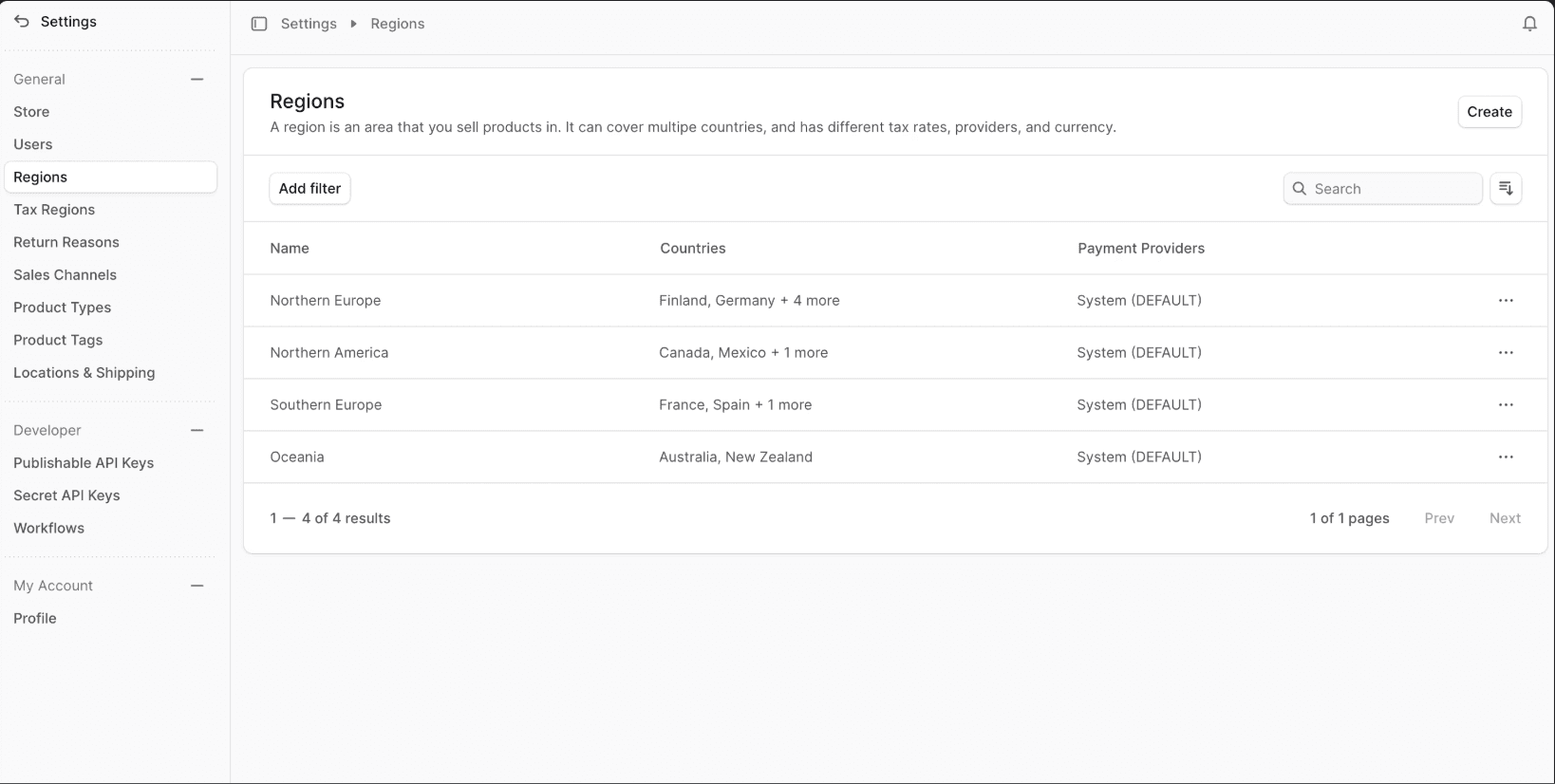
View Regions
To view regions:
- Go to Settings → Regions.
- You’ll see a list of all regions in your store.
- Use search, filter, and sort to find a specific region.
Create Region
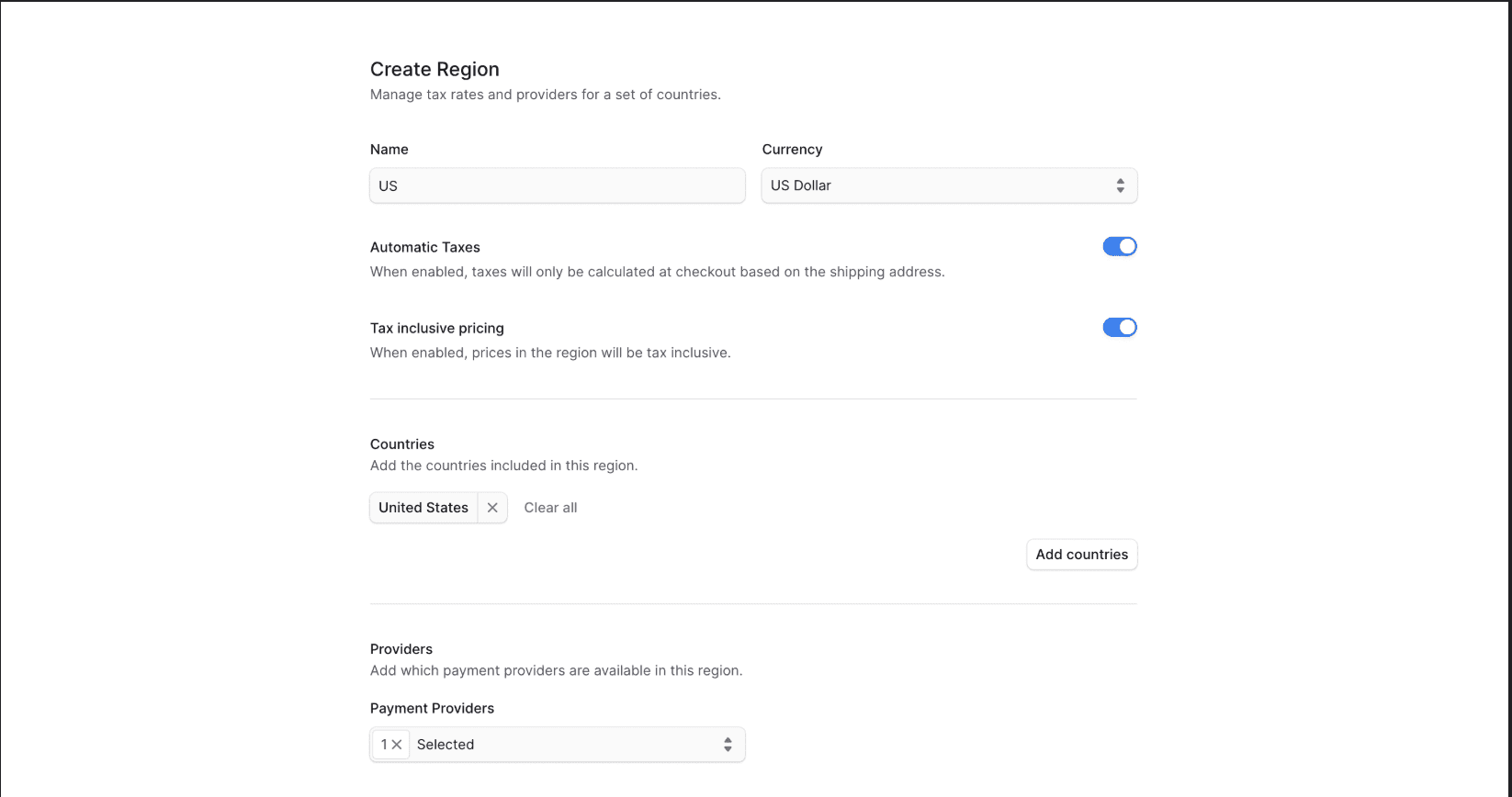
To create a region:
-
Go to Settings → Regions.
-
Click the Create button.
-
Fill out the form:
- Name: Enter a name (e.g., “Europe”).
- Currency: Select the region’s currency (only one currency per region).
- Automatic Taxes: Toggle off if you don’t want taxes calculated automatically (mostly for developers).
- Tax Inclusive Pricing: Enable if taxes should be included in product prices.
- Countries: Click Add countries, select the countries, and click Save.
- Payment Providers: Choose the payment methods available in this region.
-
Click Save when done.
View Region Details
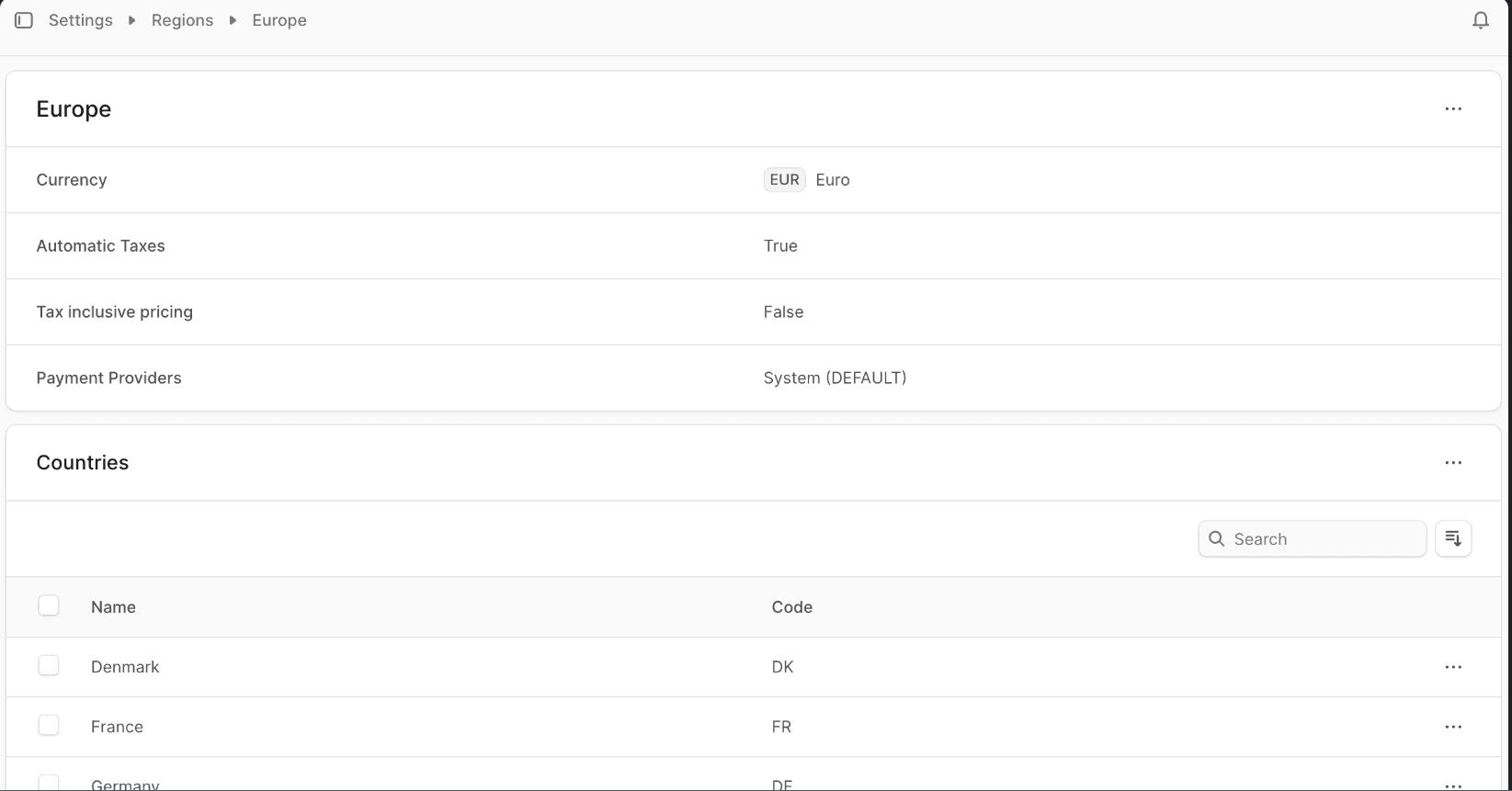
To view a region’s details:
- Go to Settings → Regions.
- Click on the region you want to view.
This opens the Region Details page.
Edit Region Details
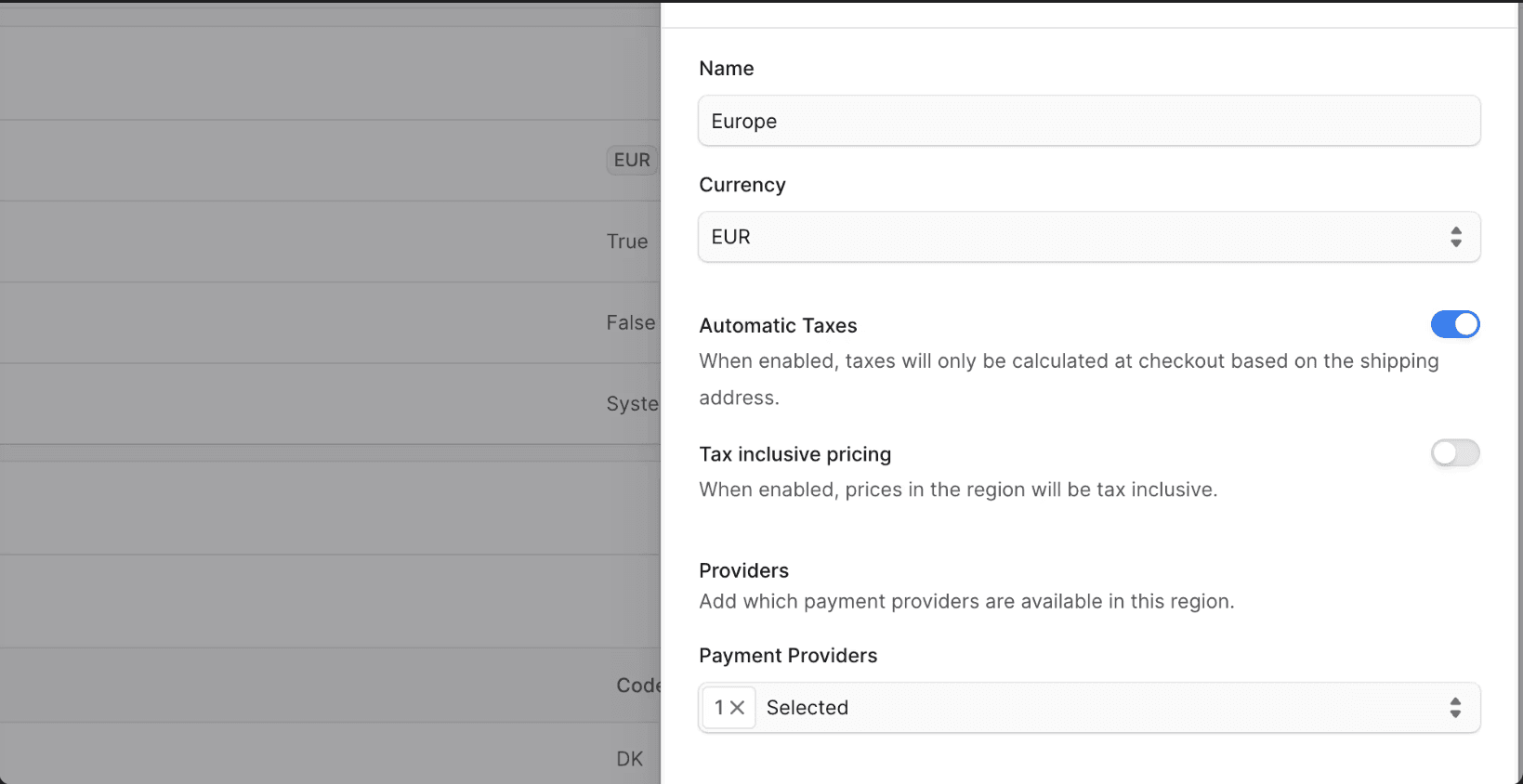
To edit a region:
-
Go to the region’s details page.
-
Click the ⋮ icon in the first section’s header.
-
Choose Edit.
-
In the side window, edit:
- Region name
- Currency
- Payment providers
- Automatic taxes
- Tax-inclusive pricing
-
Click Save when done.
Manage Region’s Countries
Add Countries to Region
- Go to the region’s details page.
- Click the ⋮ icon in the Countries section header.
- Choose Add countries.
- Check the countries you want to add.
- Click Add.
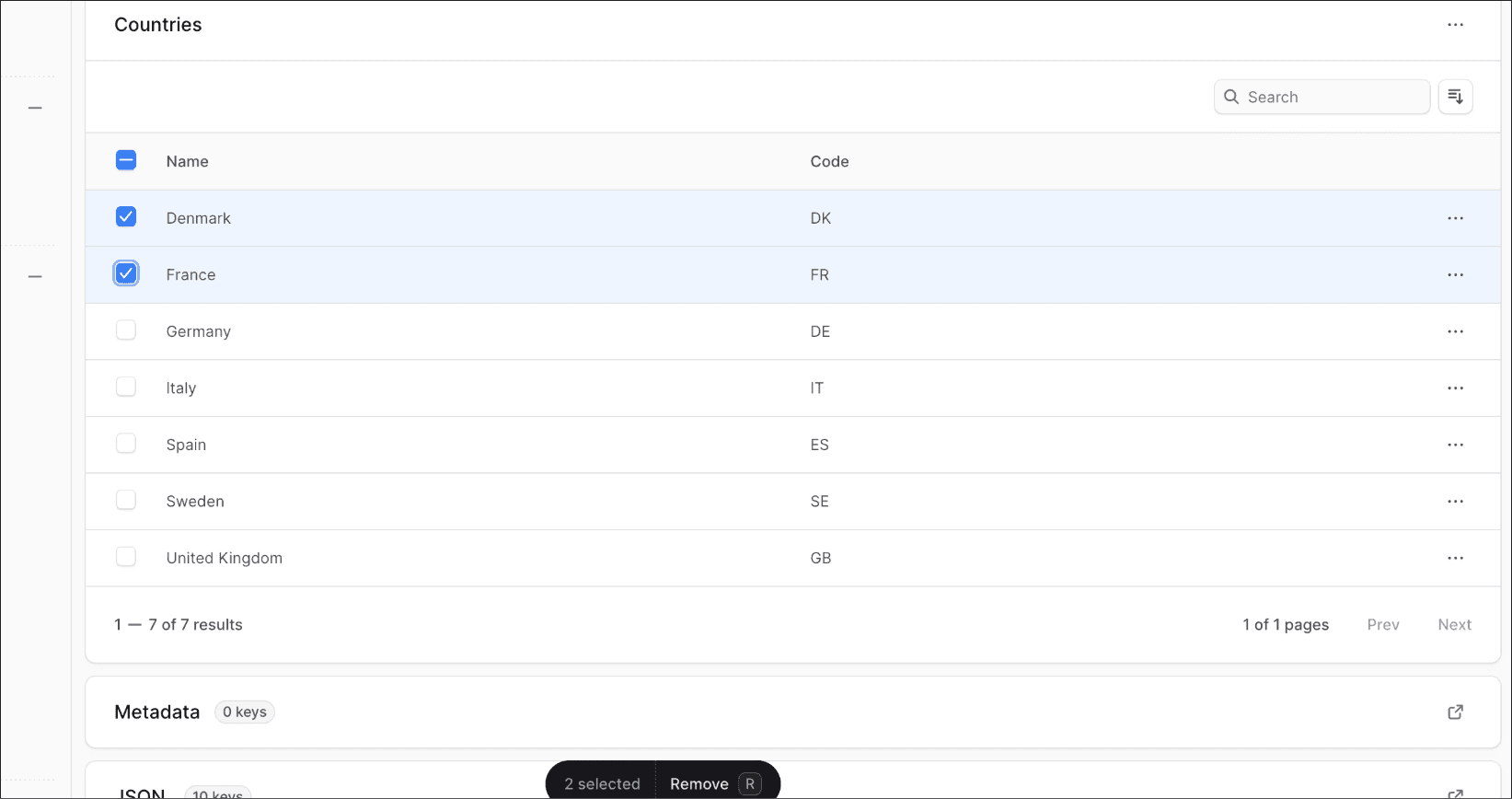
Remove Countries from Region
- Go to the region’s details page.
- Under the Countries section, check the countries to remove.
- Press R or click Remove.
- Confirm by typing Remove and clicking Remove.
Manage Region Metadata
Metadata is custom key-value data associated with a region, usually for integrations.
-
Click the ⋮ icon in the Metadata section.
-
In the side window:
- To add a row: Hover over a row → click ⋮ → choose Insert row above/below.
- To delete a row: Hover → click ⋮ → choose Delete row.
-
Click Save when done.
Delete Region
Warning: Deleting a region is irreversible.
- Go to the region’s details page.
- Click the ⋮ icon in the first section’s header.
- Choose Delete.
- Confirm by typing the region’s name and clicking Delete.