Manage Product Categories in Liqnic Admin
In this guide, you’ll learn how to create and manage product categories.
Product Categories to Organize Products
A product category is a group of products that belong to a similar type or theme. For example, a “Shoes” category can include products like sneakers, boots, and sandals. Categories help customers find products that are relevant to them and make it easier to browse your store.
Categories can be nested within other categories to create a hierarchy. For example, you can have a “Shoes” category nested within a “Women’s” category.
A product can be in multiple categories. You can learn how to set the categories of a product in this guide.
Product Categories List
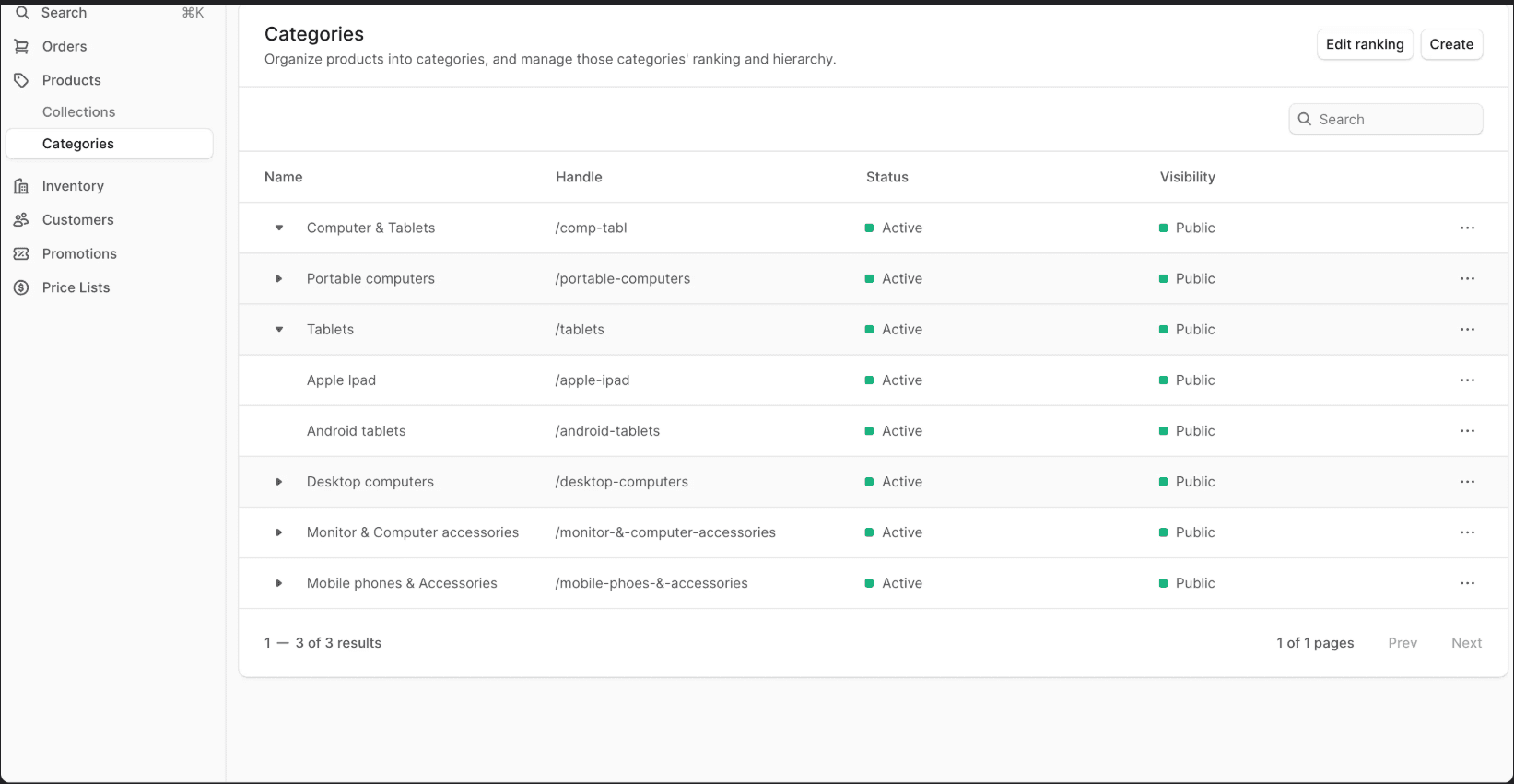
To view all product categories:
- Go to the Product → Categories page.
- From here, you can see a list, filter, and search through all categories.
Create a Product Category
To create a product category:
- Go to the Product → Categories page.
- Click on the “Create” button in the main section’s header.
- In the form that opens, there are two steps:
Details Step:
- Enter the category’s name in the Title field. This is the only required field.
- The value of the Handle field is used in the category’s URL on the storefront. It must be unique, contain lowercase letters, numbers, and hyphens (-). If not specified, Liqnic will generate a handle from the title.
- Optionally set the category’s description in the Description field.
- In the Status field, you can change the status to “Inactive” if you don’t want the category to be shown on the storefront.
- In the Visibility field, you can change the visibility to “Private” if you’re creating an internal category that shouldn’t be shown to the customer.
- Once you’re done, click the “Continue” button.
Second Step:
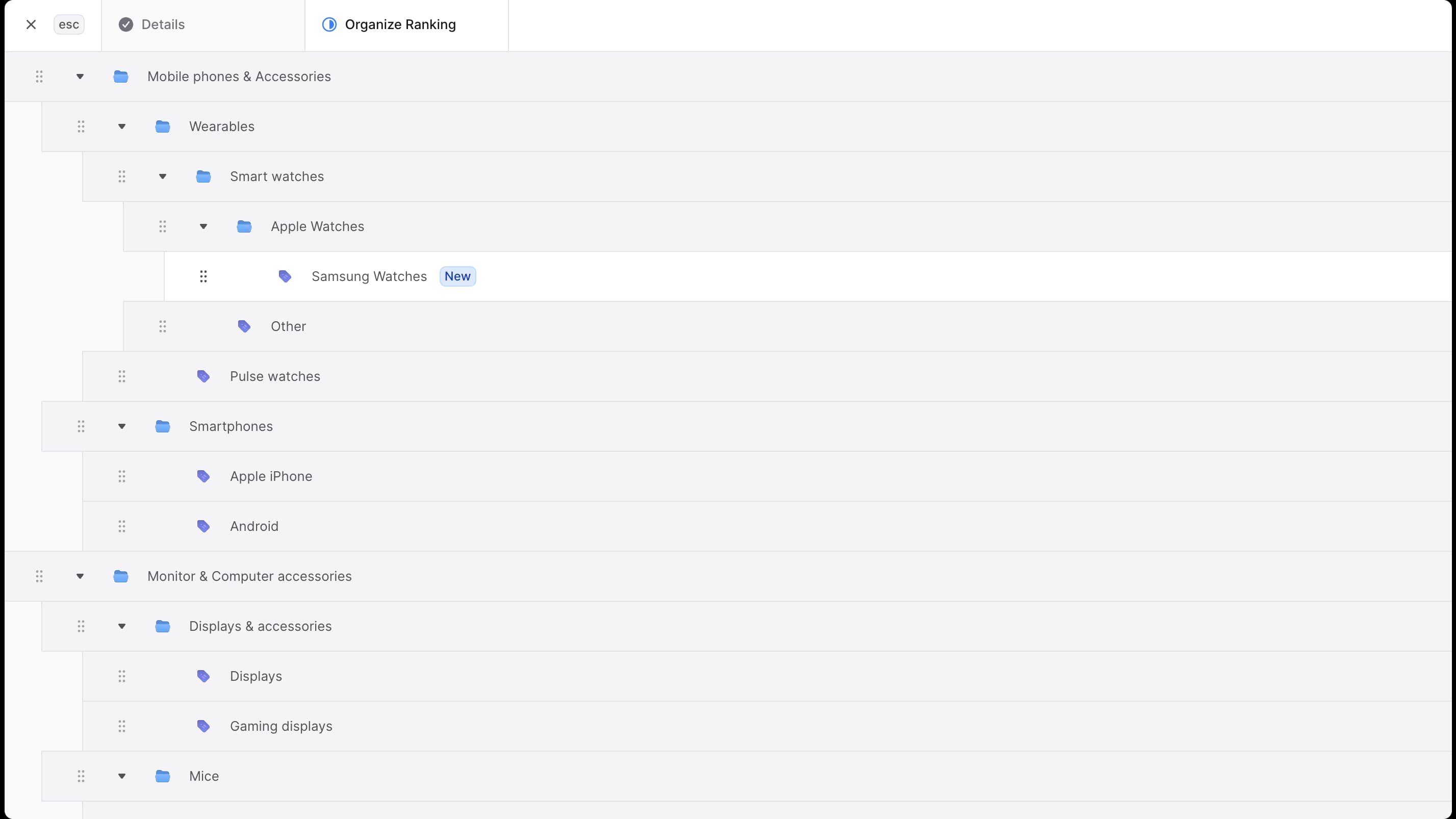
- Organize the category’s ranking among other categories:
- To move the category around, use the drag icon to adjust its position.
- To nest the category, drag it under another category and move it slightly to the side.
- Once done, click the “Save” button.
View Product Category Details
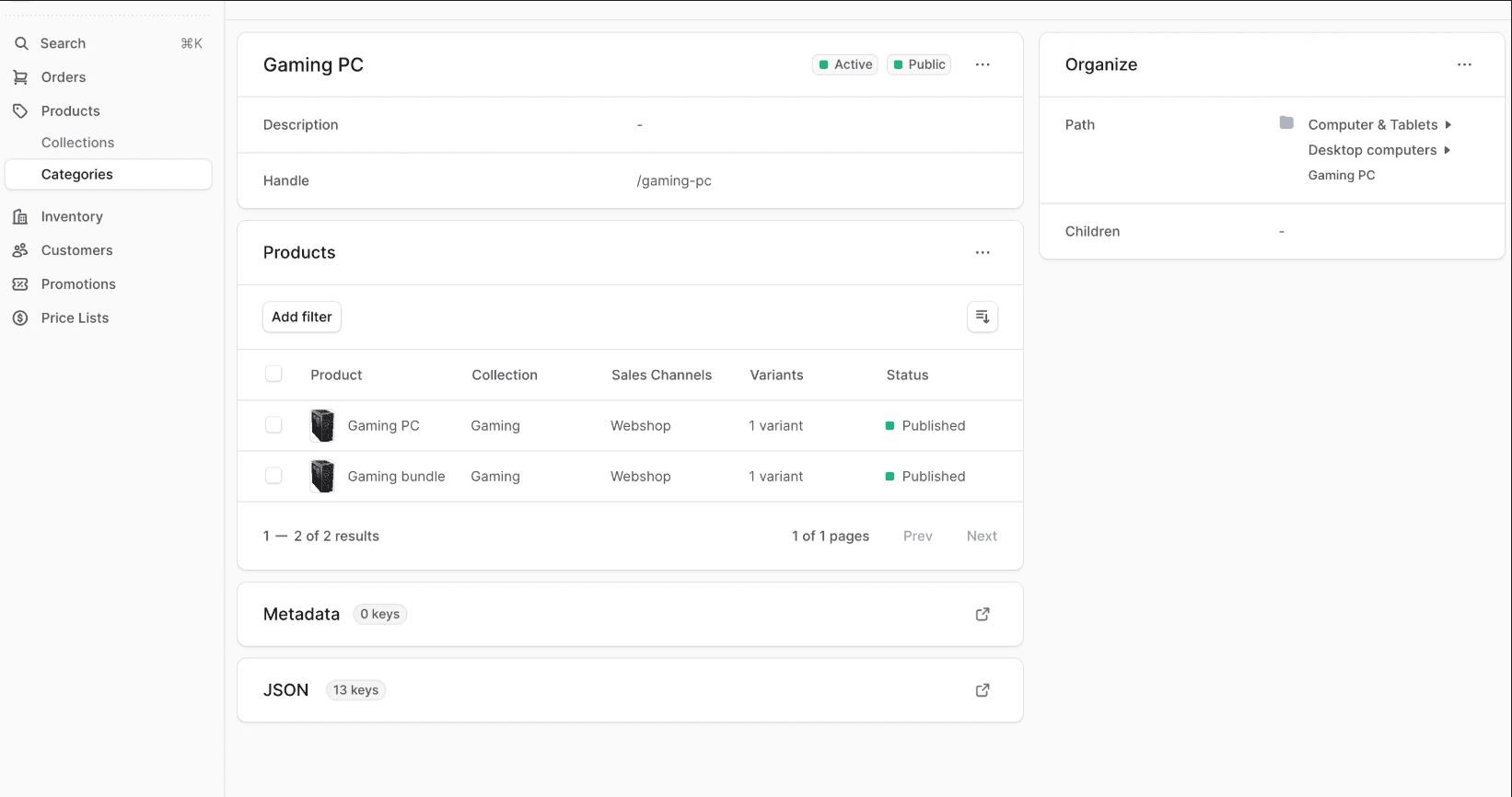
To view a category’s details:
- Go to the Product → Categories page.
- From the list, choose the category you want to view.
Product Category Status and Visibility
In the first section’s header, you’ll find two badges:
-
Status badge:
- Active: The category is active and shown on the storefront.
- Inactive: The category is inactive and not shown on the storefront.
-
Visibility badge:
- Public: The category is visible to customers on the storefront.
- Private: The category is not visible to customers on the storefront. It’s only used by admin users.
Edit Product Category’s Details
To edit a product category:
- Go to the Product → Categories page.
- Click on the category to edit. If the category is nested in another, you may need to expand the parent category by clicking the icon.
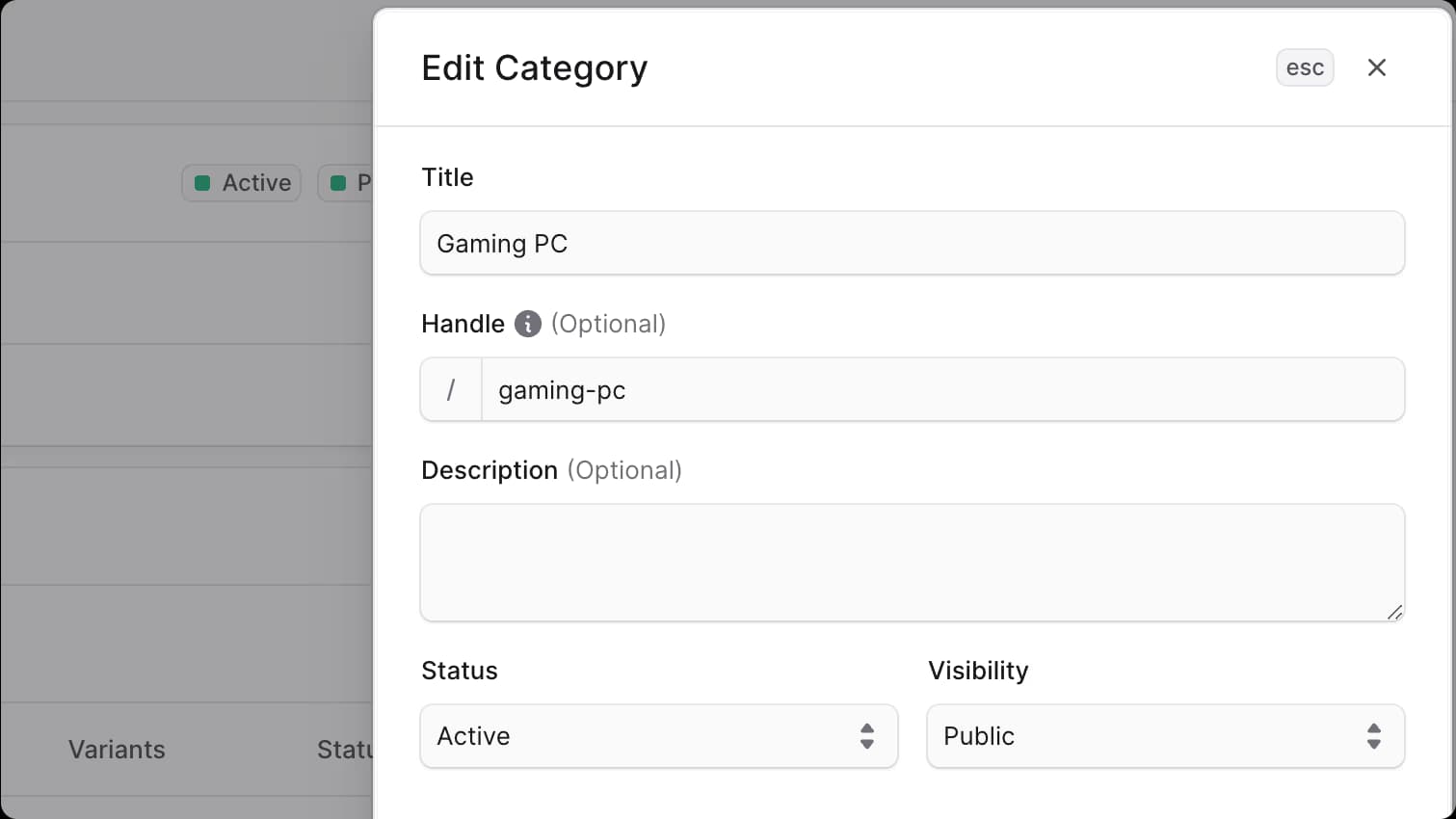
- Click the icon in the first section of the category page.
- Choose “Edit” from the dropdown.
- In the side window that opens, you can edit the category’s title, handle, description, status, and visibility.
- Once you’re done, click the “Save” button.
Edit Product Category Metadata
Metadata is custom data that can be associated with the product category in key-value pairs. This is usually used by developers for custom integrations or to store additional information about the product category.
To edit the product category’s metadata:
- Go to the product category’s details page.
- Click the icon in the “Metadata” section.
- In the side window that opens:
- Manage the key-value pairs in the table.
- To add a new row of key-value pairs before or after a row: Hover over the row and click the icon at its end. Choose “Insert row above” or “Insert row below”.
- To delete a row of key-value pairs: Hover over the row and click the icon at its end. Choose “Delete row”.
- Once you’re done, click the “Save” button.
Manage Category’s Products
From the product category’s details page, you can manage the products in the category.
Add Products to a Category
To add products to a category:
- Go to the category’s details page.
- In the Products section, click the icon.
- Choose “Add” from the dropdown.
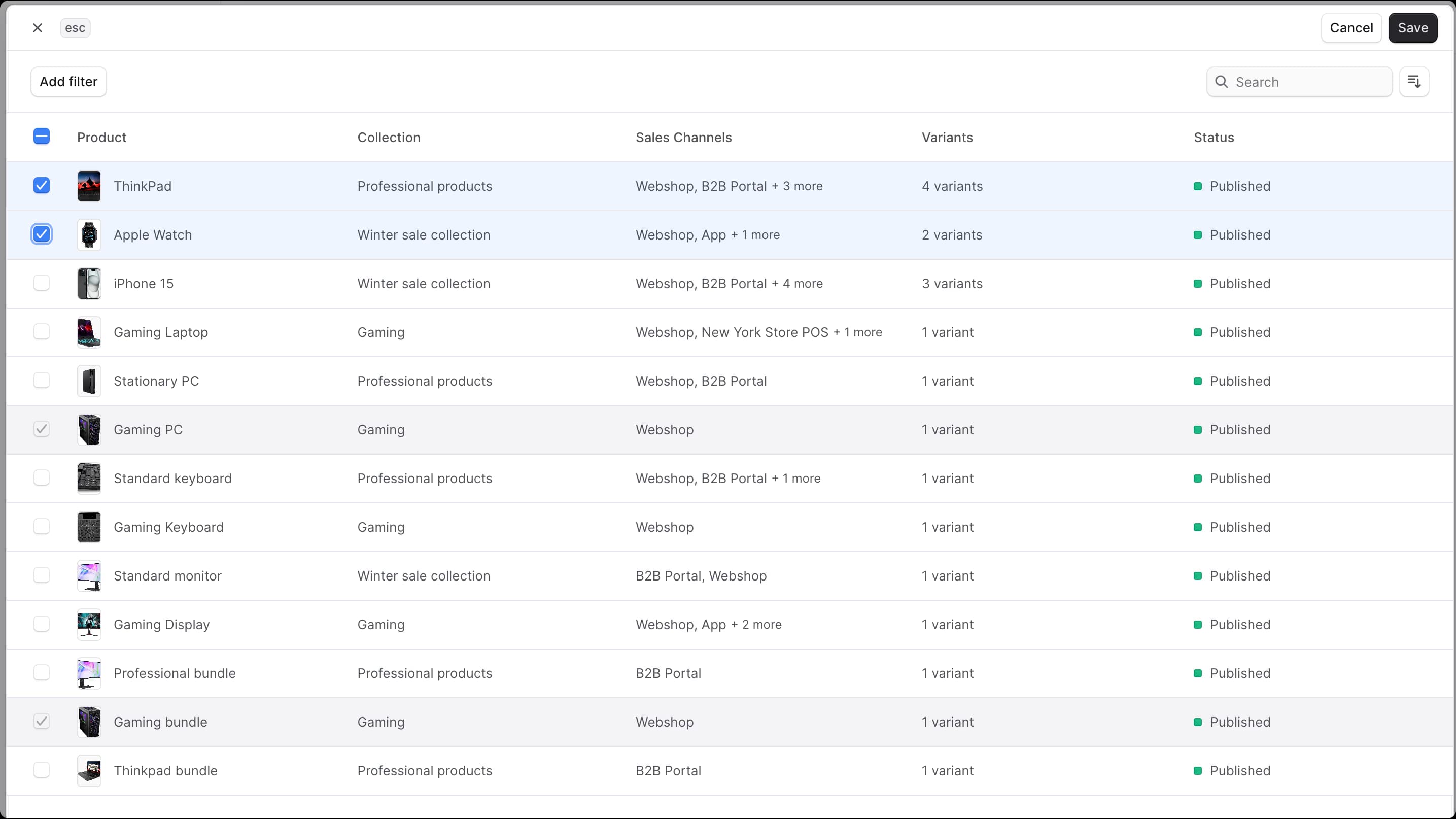
- From the list that opens, check the products you want to add to the category.
- Once done, click the “Save” button.
Remove Products from a Category
To remove products from a category:
- Go to the category’s details page.
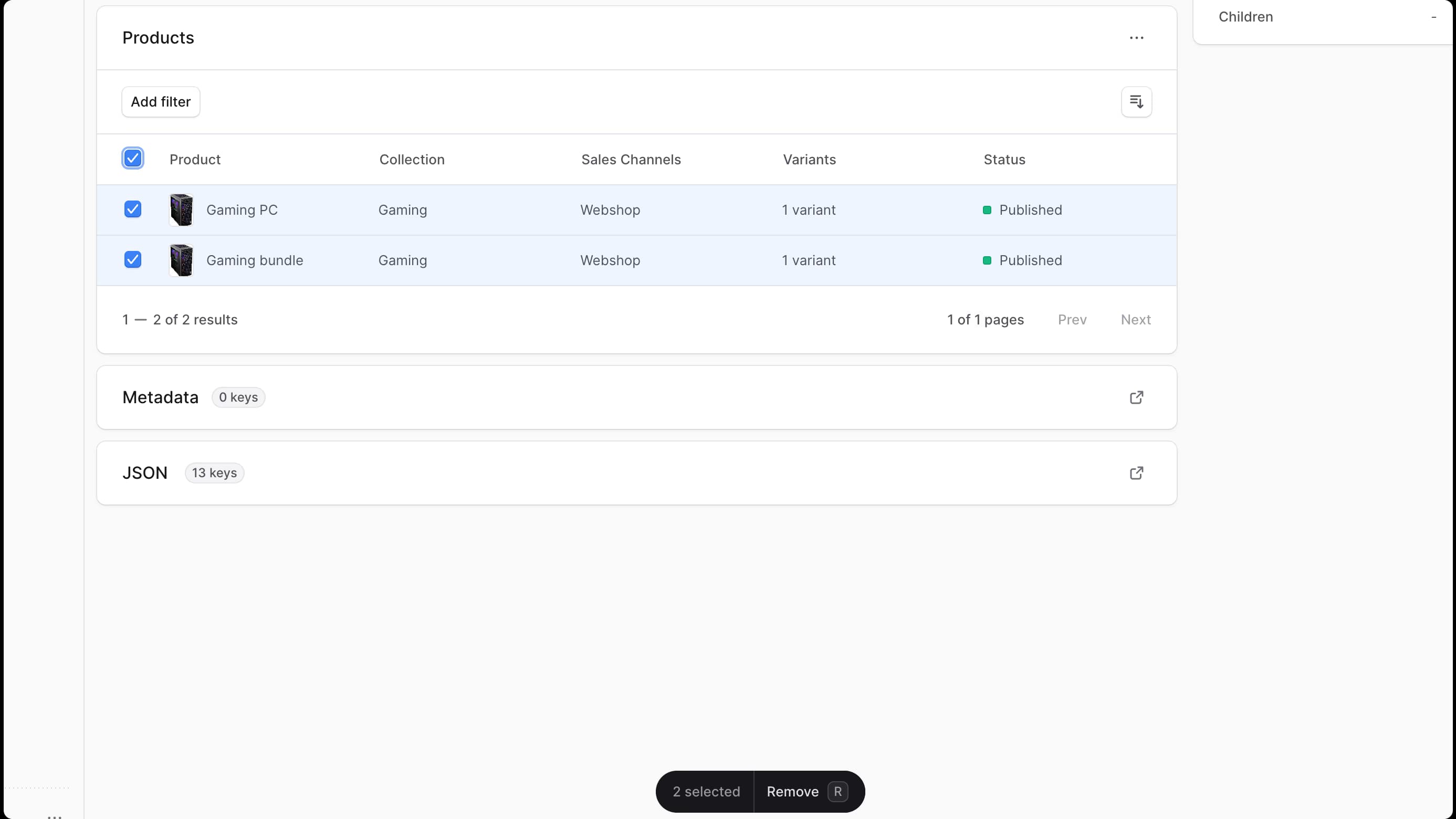
- In the Products section, check the products you want to remove from the category.
- Once done, either press R or click “Remove” at the bottom center of the page.
- Confirm removing the products by clicking the “Remove” button in the pop-up.
Edit Categories Ranking
To change the categories’ ranking and hierarchy:
- Go to the Product → Categories page.
- Click on the “Edit ranking” button.
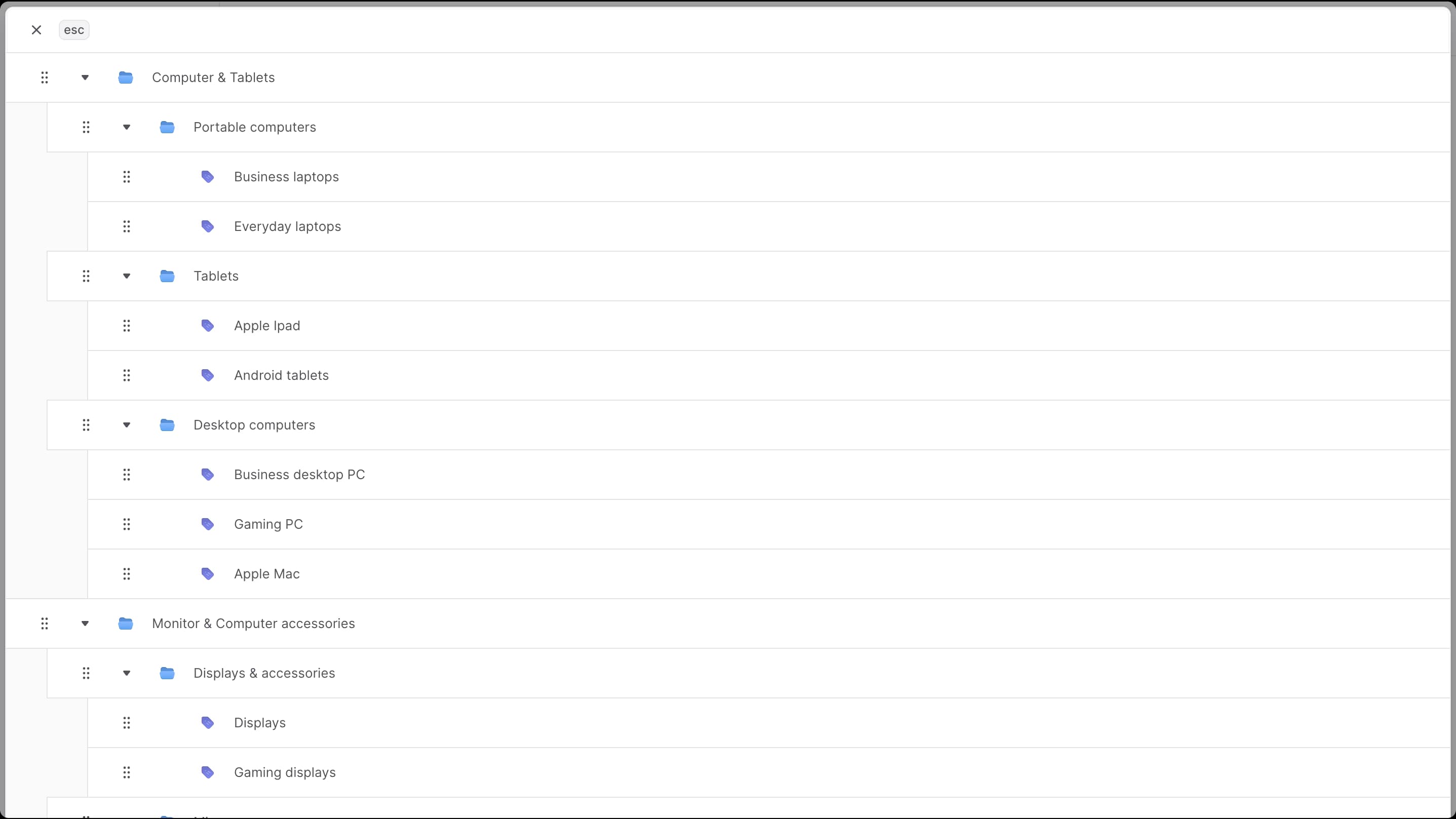
- In the form that opens, you can change the ranking and hierarchy of the categories:
- Changes are saved every time you move a category.
- To move categories around, use the drag icon to place them in the correct position.
- To nest a category in another, drag it under the other category and move it slightly to the side.
- Once done, close the form as the changes have already been saved.
Delete a Category
Warning: Deleting a category is irreversible.
To delete a category:
- Go to the Product → Categories page.
- Click the icon in the category’s row.
- Choose “Delete” from the dropdown.
- Confirm deleting the category by clicking the “Delete” button in the pop-up.